How do I invite colleagues to the Advanced Agency Portal? How to manage team access in SmartRecruiters?
Last updated: June 15, 2026
By assigning the correct roles and permissions, you ensure team members have the appropriate level of access while maintaining system security.
Adding a new team member to SmartRecruiters:
To invite a colleague:
Go to Settings → User management (under permissions)
Click + Add new user
Enter the required details
Assign the appropriate role and permissions
Send invite
Note: for access to the Agency Portal Settings, administrator rights in SmartRecruiters are required.
Modify existing user permissions
Generic for SmartRecruiters
Go to Settings → User management (under permissions)
Click the pencil (edit user) l next to the team member you'd like to edit.
Enter the change
Save changes
Agency specific
Go to settings
Scroll down & click Agency Portal Settings
Click Permissions
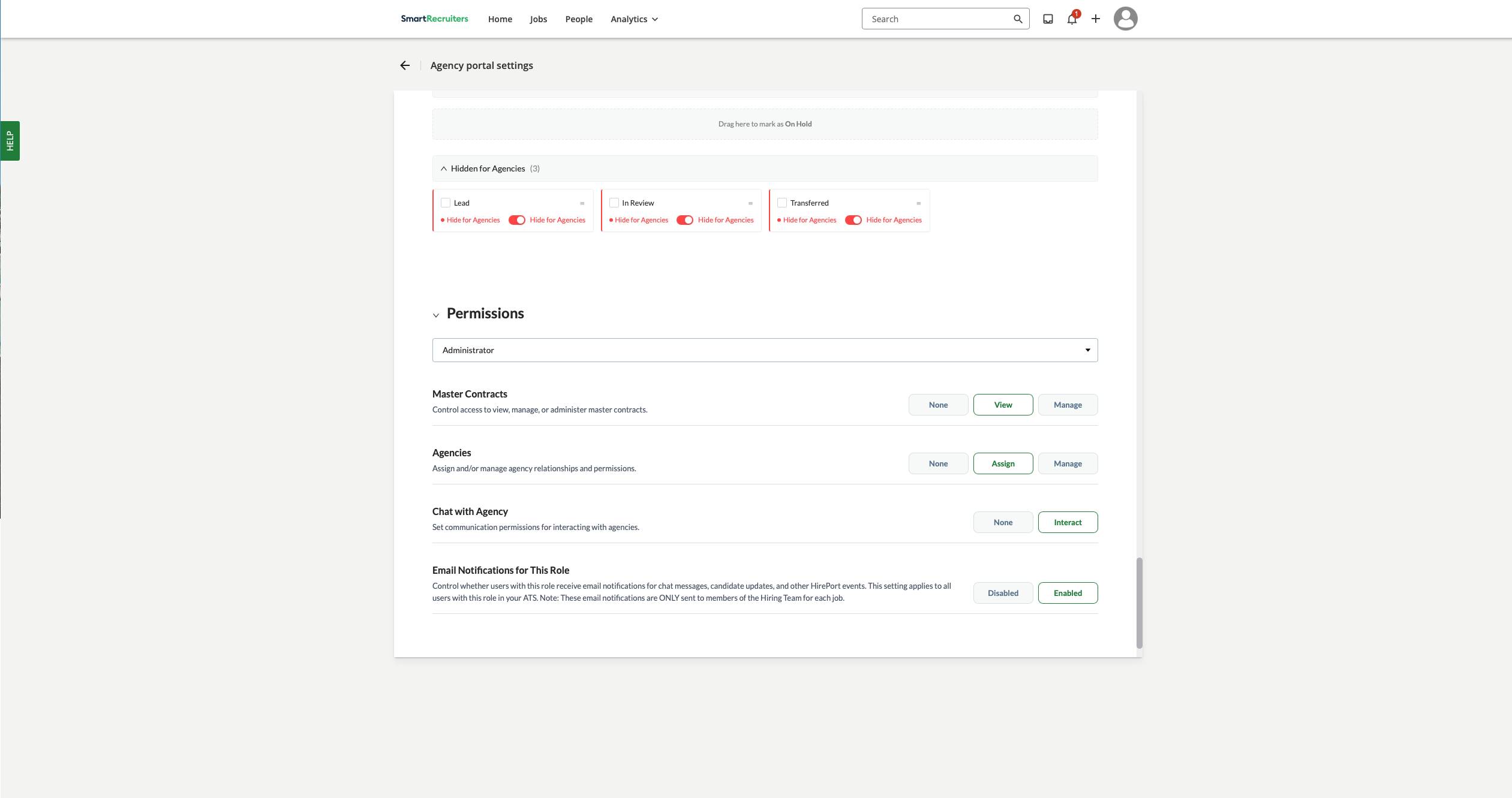
Use the drop down menu for editing the Advanced AgencyPortal-specific permissions (tip: also review Chat & Communication settings within the AgencyPortal settings).
Below the role selector drop down menu, you'll see a list of HirePort features or modules. For each feature, you can set a specific permission level for the selected role. Common features include:
Contracts: Controls access to viewing and managing contract agreements.
None: The role cannot see or interact with contracts
View: Users in this role can see contracts but cannot make changes
Manage: Users can view, create, and edit contracts
Admin: Users have full control, including viewing, creating, editing, and deleting contracts
Agencies: Manages interactions with recruitment agencies.
None: The role cannot see or interact with agencies
Assign: Users can view agencies and assign them to jobs
Manage: Users can view and edit agency details
Admin: Users have full control, including adding, editing, and removing agencies
Chat: Governs access to chat functionalities.
None: The role cannot use the chat features
Interact/Admin: Users can view and participate in chats.
Email notifications for this role:
Determine which type of users receive email notifications about activities within the Advanced Agency Portal.
Minimal Role & Permission Recommendations
To maintain security and clarity, assign the minimum permissions necessary.
Recruiters
Recommended permissions:
Managing agencies access
View master contracts
Interact with agencies
Administrators
Recommended permissions:
Full system access
Managing master contracts
Managing agencies access
Best Practices
Regularly review and audit user access.
Assign permissions based on responsibilities, not job titles alone.
Remove or deactivate access promptly when team members leave or change roles.
Need help?
Contact SmartRecruiters support.