Agency Portal Settings Guide - Initial setup
Last updated: September 25, 2026
The Agency Portal Settings define how agencies work with you. These settings should be configured as part of the initial setup before inviting agencies.
In this section, you control key behaviors such as default language and currency, duplicate candidate prevention, agency recruiter permissions, communication preferences and role-based access. Configuring these options upfront helps ensure clear ownership, smooth collaboration, and proper alignment with your SmartRecruiters workflows.
This article provides an overview of each setting and explains how it impacts agency activity across the platform.
In this article:
Accessing the Agency Portal Settings
Basic portal settings
Duplicate candidate prevention
Credit system & busy spots
Agency Recruiter Permissions
Chat & communication
Screening questions
Advanced Settings
Default stage mappings
Permissions
Support
Accessing the Agency Portal Settings
You need admin access to reach the Agency Portal Settings. Once you have that:
Go to Settings.
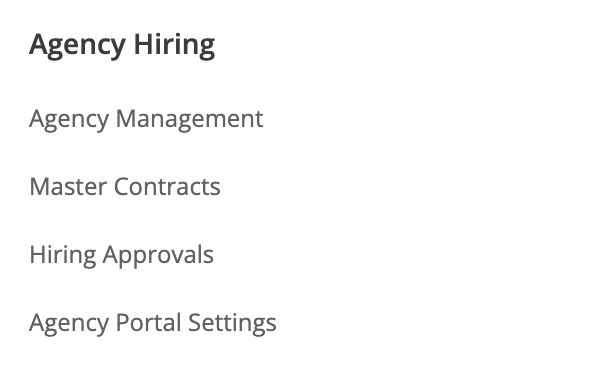
Scroll down to the Agency Hiring section.
Click Agency Portal Settings.
Basic Portal Settings
At Basic Portal Settings we control:
The default language for agency hiring
The default currency for agency hiring
Duplicate candidate prevention
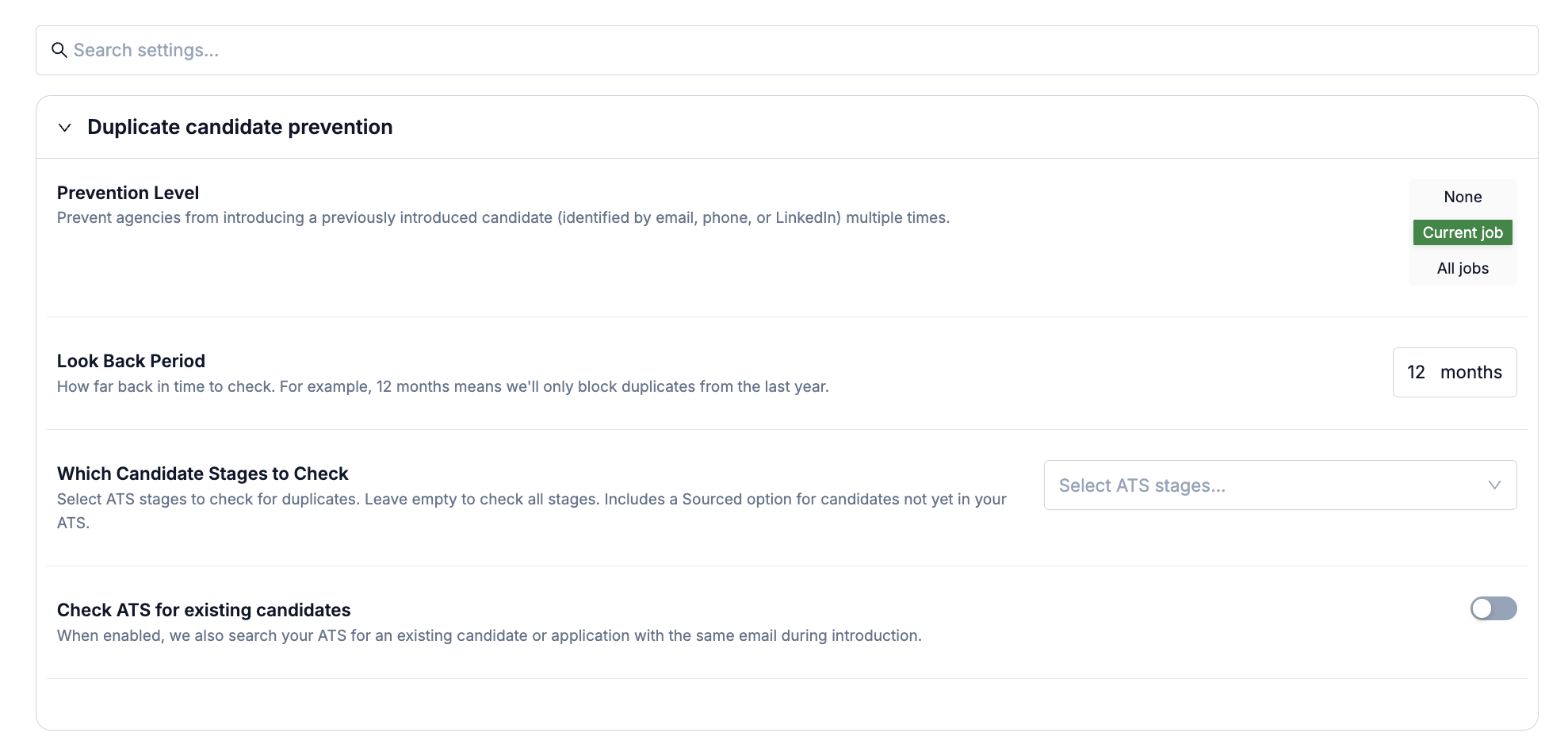
Prevention Level Prevent agencies from introducing a previously introduced candidate (identified by email, phone, or LinkedIn) more than once. Choose:
None – no duplicate checking
Current job – block a candidate from being introduced twice for the same job only (agencies can still propose the same candidate to a different job)
All jobs – block a candidate from being introduced more than once across any job
Look Back Period How far back in time to check for duplicates. For example, setting this to 12 months means only duplicates introduced within the last year are blocked.
Which Candidate Stages to Check Select which ATS stages to check for duplicates. Leave this empty to check all stages.
Check ATS for Existing Candidates When enabled, the duplicate scan also searches your ATS for an existing candidate or application with the same email address at the moment a candidate is introduced.
⚠
SmartRecruiters merges candidates that share the same last name and email address with an existing direct application. Adding a Candidate Name Suffix (see Advanced Settings) prevents this automatic merging.
Credit System
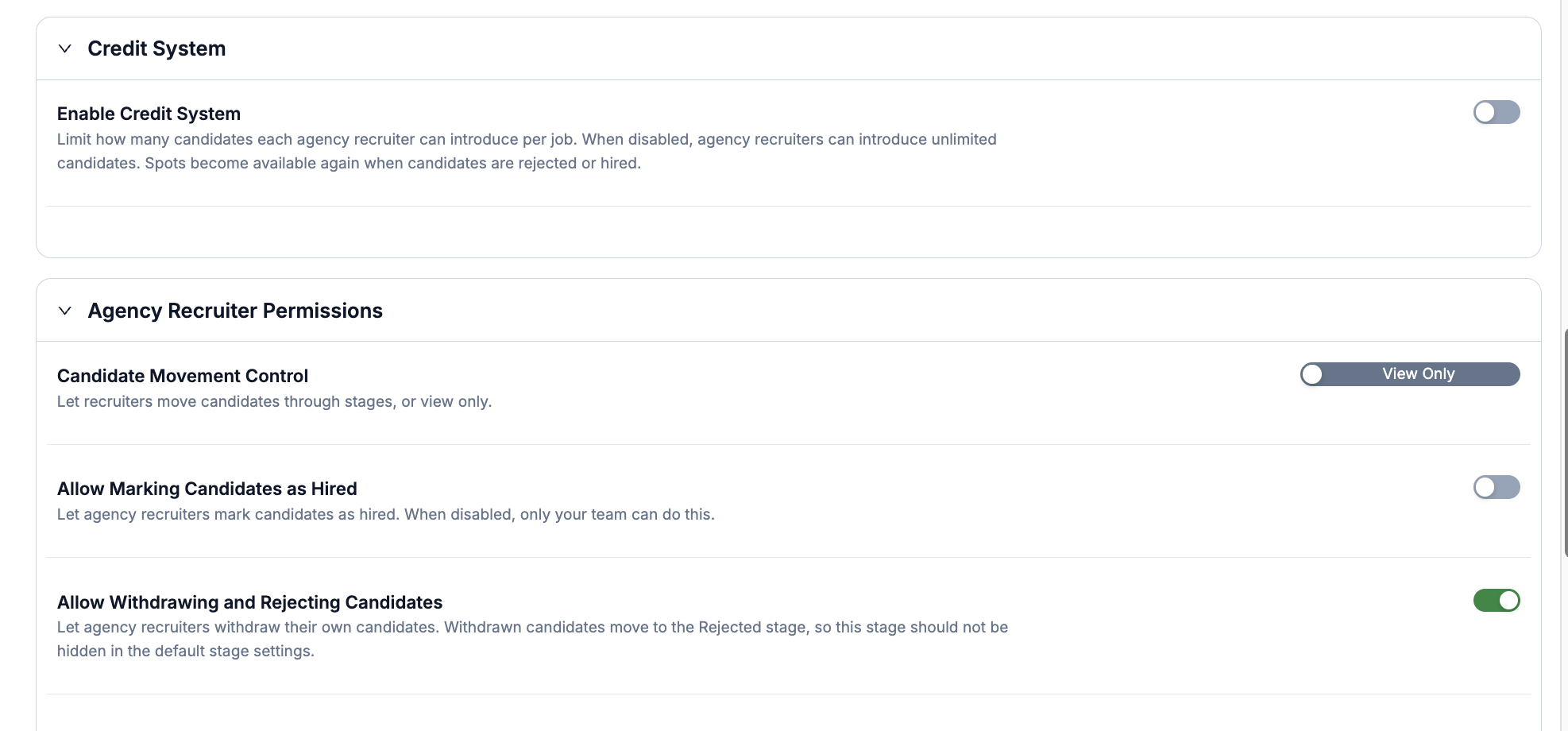
The credit system limits the amount of candidates that an agency user can propose to a job. The intention is to let them select only the best suited candidates.
For every candidate that is moved in Recruitee to interviews, a new credit is awarded to the agency user.
Busy spots helps you let agency recruiters focus on roles that need the most attention instead of proposing candidate to jobs with already properly filled candidate pipelines.Agency Recruiter Permissions
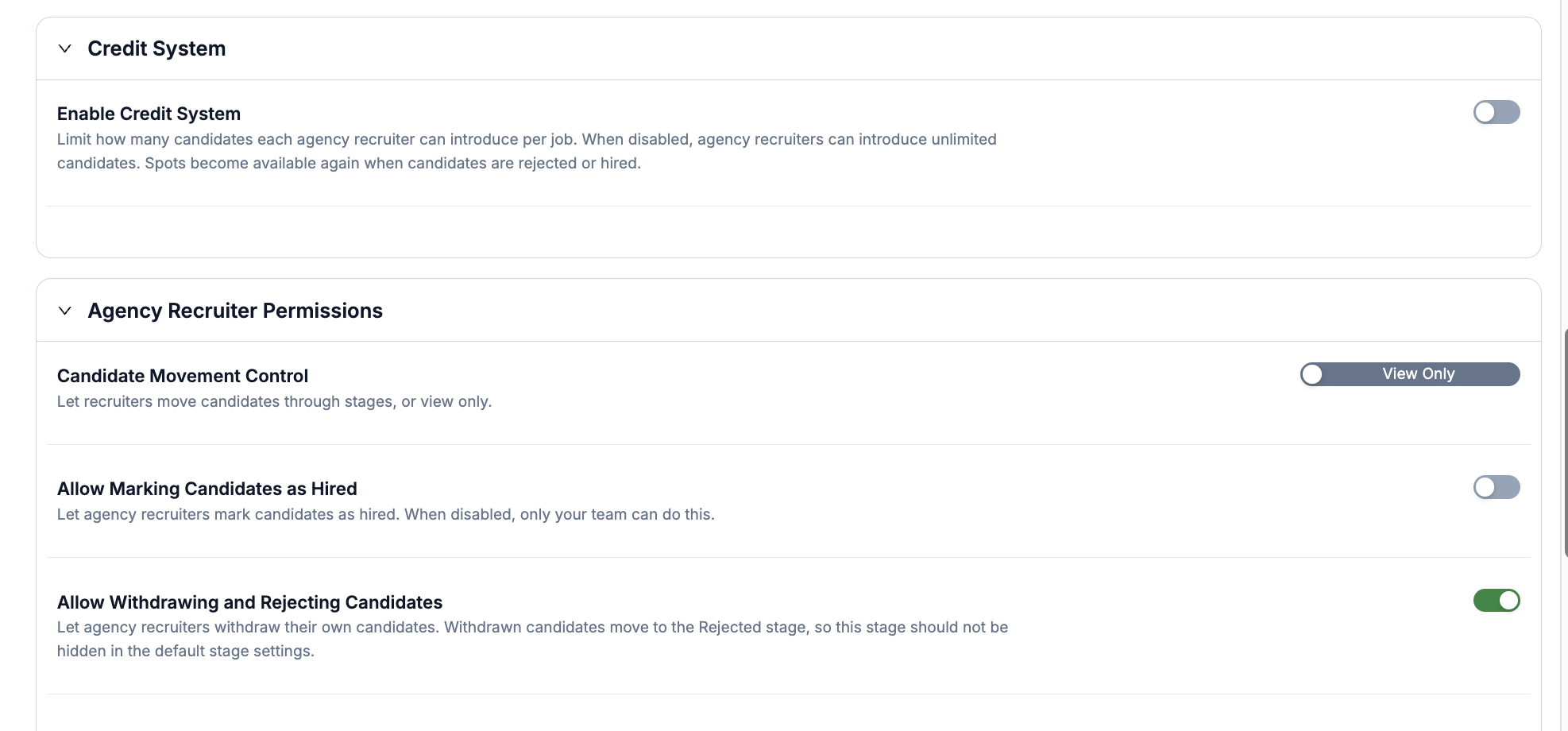
Candidate Movement Control Decide whether agencies can move candidates through stages themselves, or can only view stage changes you make.
Allow Marking Candidates as Hired Let agencies mark their own candidates as hired. When this is disabled, only your team can mark candidates as hired.
Allow Withdrawing and Rejecting Candidates Let agencies withdraw their own candidates. Withdrawn candidates move to the Rejected stage, so make sure that stage isn't hidden in your Default Stage Mappings.
Fee Approvals
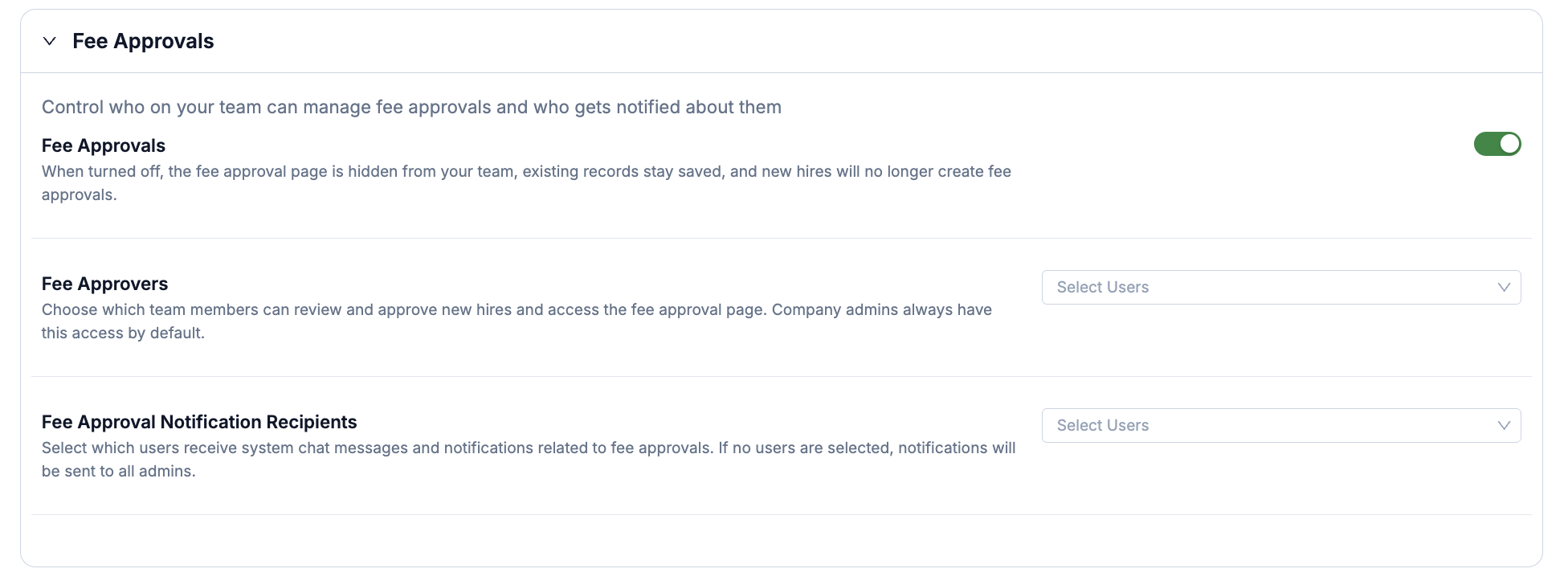
Fee Approvals adds an extra control step for the agency fee before it reaches the agency. The fee is pulled from the contract and must be approved before it's sent to the agency as the approved fee.
⚠ This is not invoicing: invoicing itself is outside the scope of the Agency Portal.
Control who on your team can manage fee approvals and who gets notified about them.
Fee Approvals This toggle turns the entire fee approval page and feature on or off. When turned off, the fee approval page is hidden from your team, existing fee approval records stay saved, and new hires will no longer create fee approvals.
Fee Approvers Choose which team members can approve the fee on new hires and access the fee approval page. Company admins always have this access by default.
Fee Approval Notification Recipients Select which users receive system chat messages and notifications related to fee approvals. If no users are selected, notifications are sent to all admins.
Chat & communication
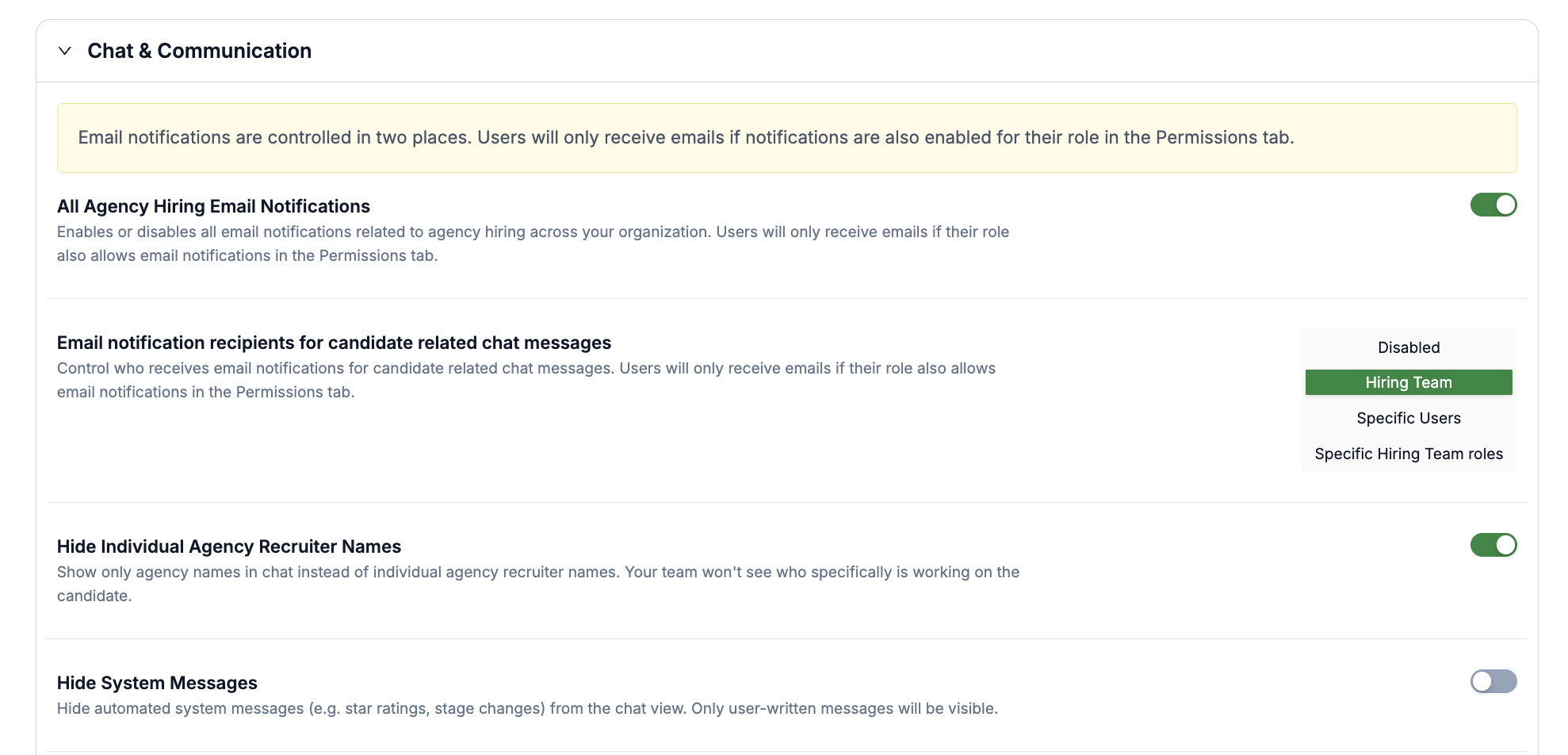
Email notifications are controlled in two places. Users only receive emails if notifications are also enabled for their role in the Permissions tab.
All Agency Hiring Email Notifications Master switch that enables or disables all email notifications related to agency hiring across your organization. Users still only receive emails if their role also allows email notifications in the Permissions tab.
Email Notification Recipients for Candidate Related Chat Messages Control who receives email notifications for candidate-related chat messages:
Disabled
Hiring Team
Specific Users
Specific Hiring Team roles
Hide Individual Agency Recruiter Names When enabled, chat shows only the agency name instead of the individual agency recruiter's name, so your team won't see who specifically is working on the candidate.
Hide System Messages When enabled, automated system messages (such as star ratings and stage changes) are hidden from the chat view, so only user-written messages are shown.
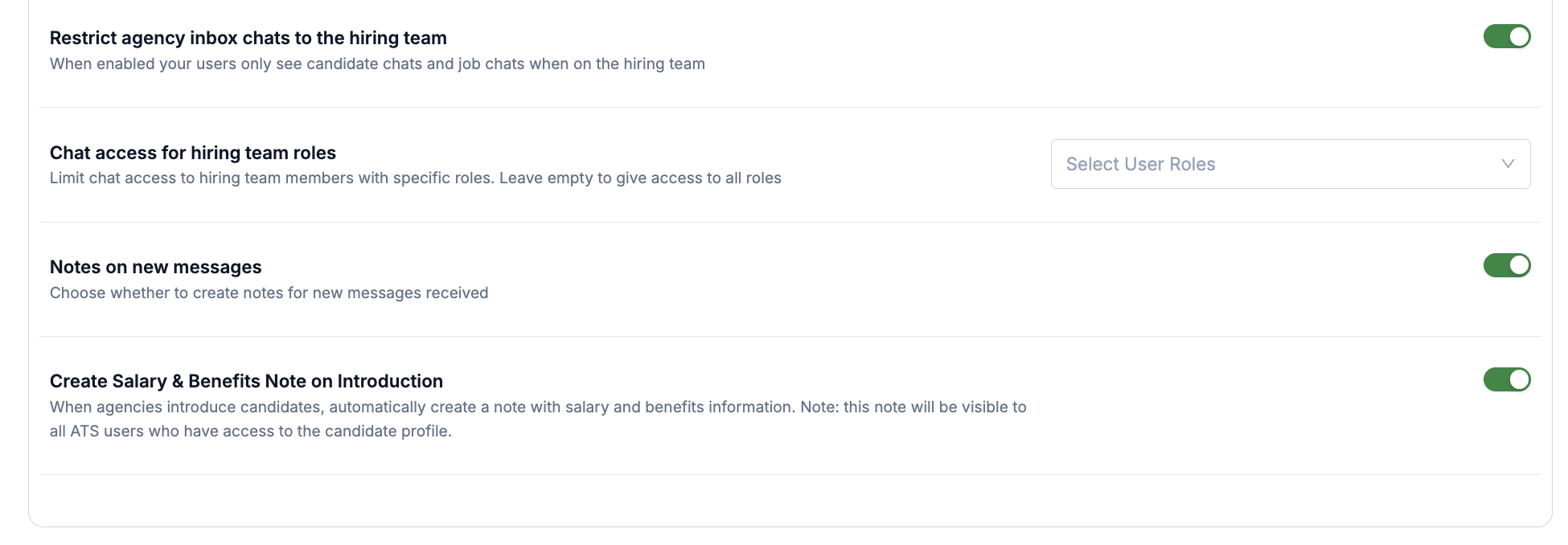
Restrict Agency Inbox Chats to the Hiring Team When enabled, your users only see candidate chats and job chats for jobs where they're on the hiring team.
Chat Access for Hiring Team Roles Limit chat access to hiring team members with specific roles. Leave this empty to give access to all roles.
Notes on New Messages Choose whether the system should automatically create a note on the candidate profile whenever a new message is received.
Create Salary & Benefits Note on Introduction When enabled, the system automatically creates a note with salary and benefits information whenever an agency introduces a candidate. This note is visible to all ATS users who have access to the candidate profile.
Screening questions
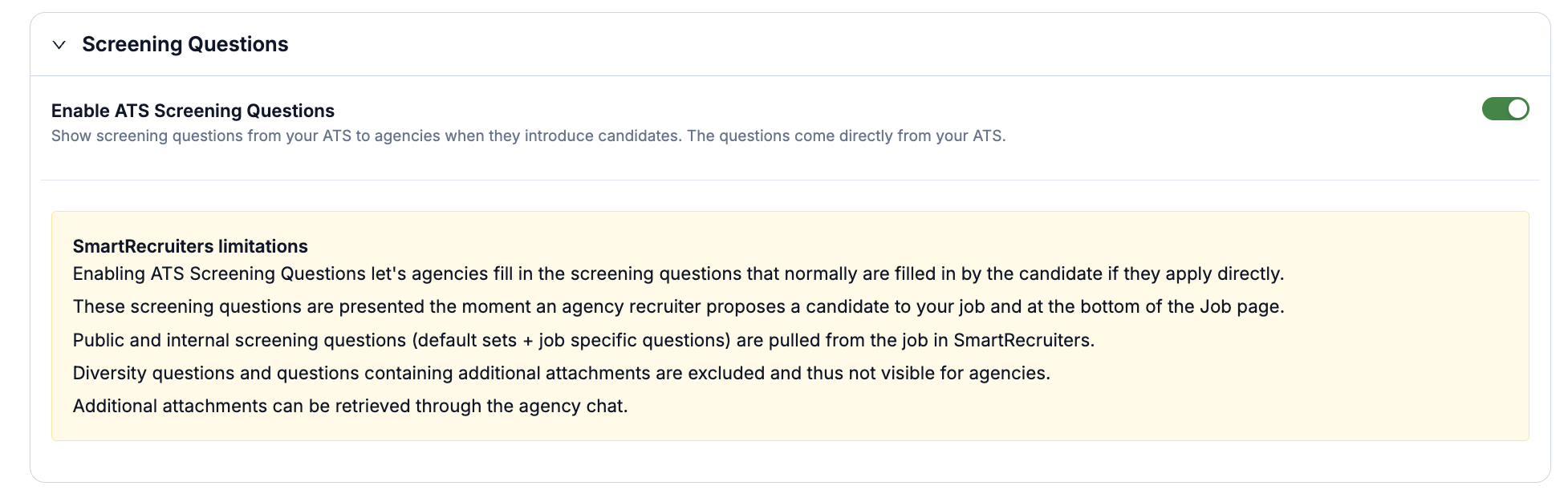
Enabling ATS Screening Questions allows agencies to complete screening questionnaires when proposing candidates, matching the process for direct applicants. These questions appear when agencies propose candidates, and on the job page on the agency side of the portal.
⚠ These screening questions won't come through when jobs are published privately (they will come through for public & internal jobs).
Advanced settings
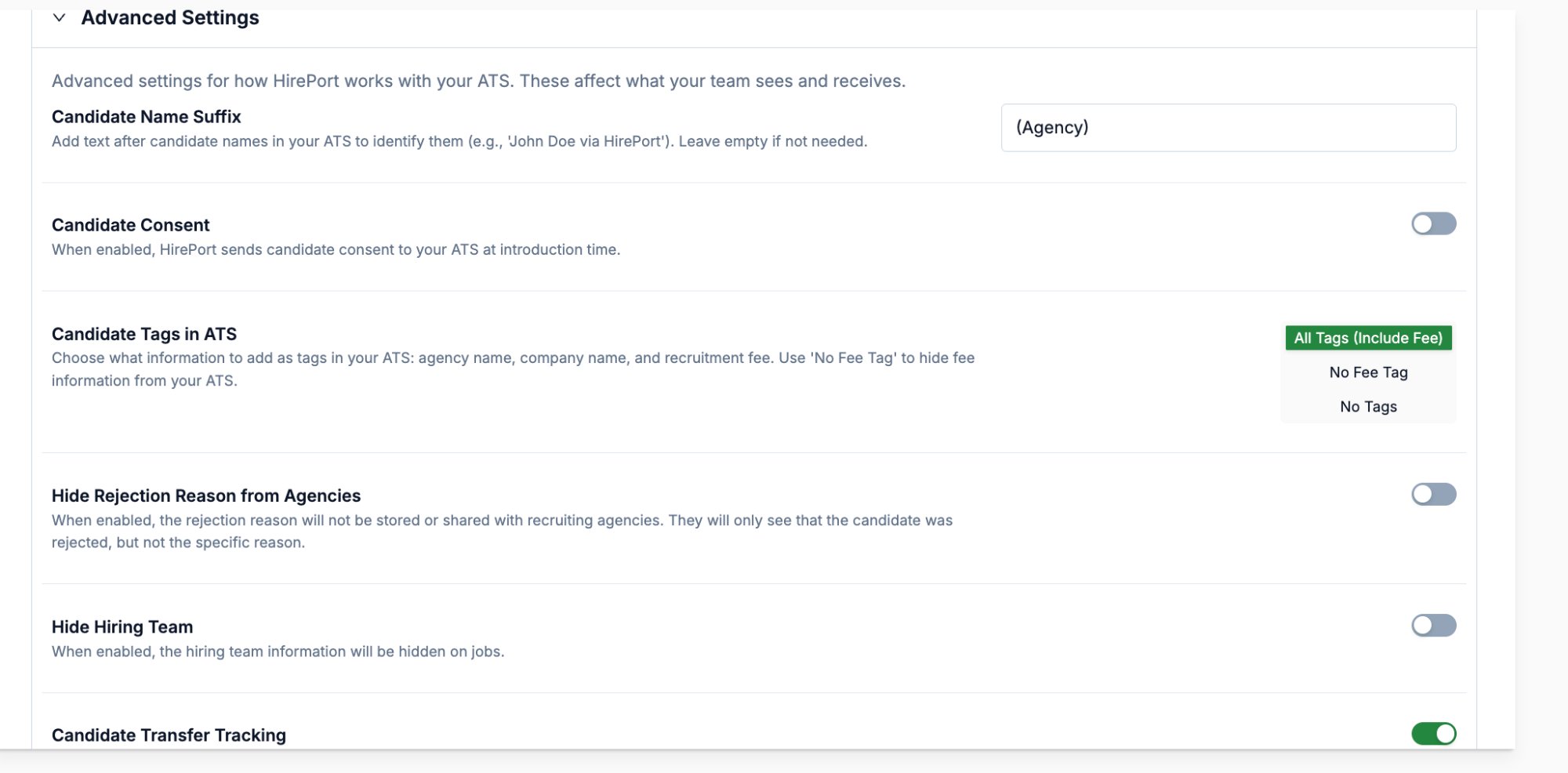
Candidate Name Suffix Add text after candidate names in your ATS to identify them (for example, "John Doe (Agency)"). Leave this empty if you don't need it.
⚠ The system recognizes the candidate name suffix as a part of the last name of the candidate.
Candidate Consent When enabled, candidate consent is sent to your ATS at the time a candidate is introduced.
Candidate Tags in ATS Choose what information to add as tags on the candidate profile in your ATS:
All Tags (Include Fee) – agency name, company name, and recruitment fee
No Fee Tag – hides fee information from your ATS
No Tags
Hide Rejection Reason from Agencies When enabled, the rejection reason is not shared with recruiting agencies. They'll only see that a candidate was rejected, not the specific reason.
Hide Hiring Team When enabled, hiring team information is hidden on jobs.
Candidate Transfer Tracking When enabled, agencies receive updates if their candidate transfers to another position. A new interview is created for the new position, with the original agency retained as the source.
⚠ This only works well when your duplicate scan is set to 'current job' or turned off.
Default Stage Mappings
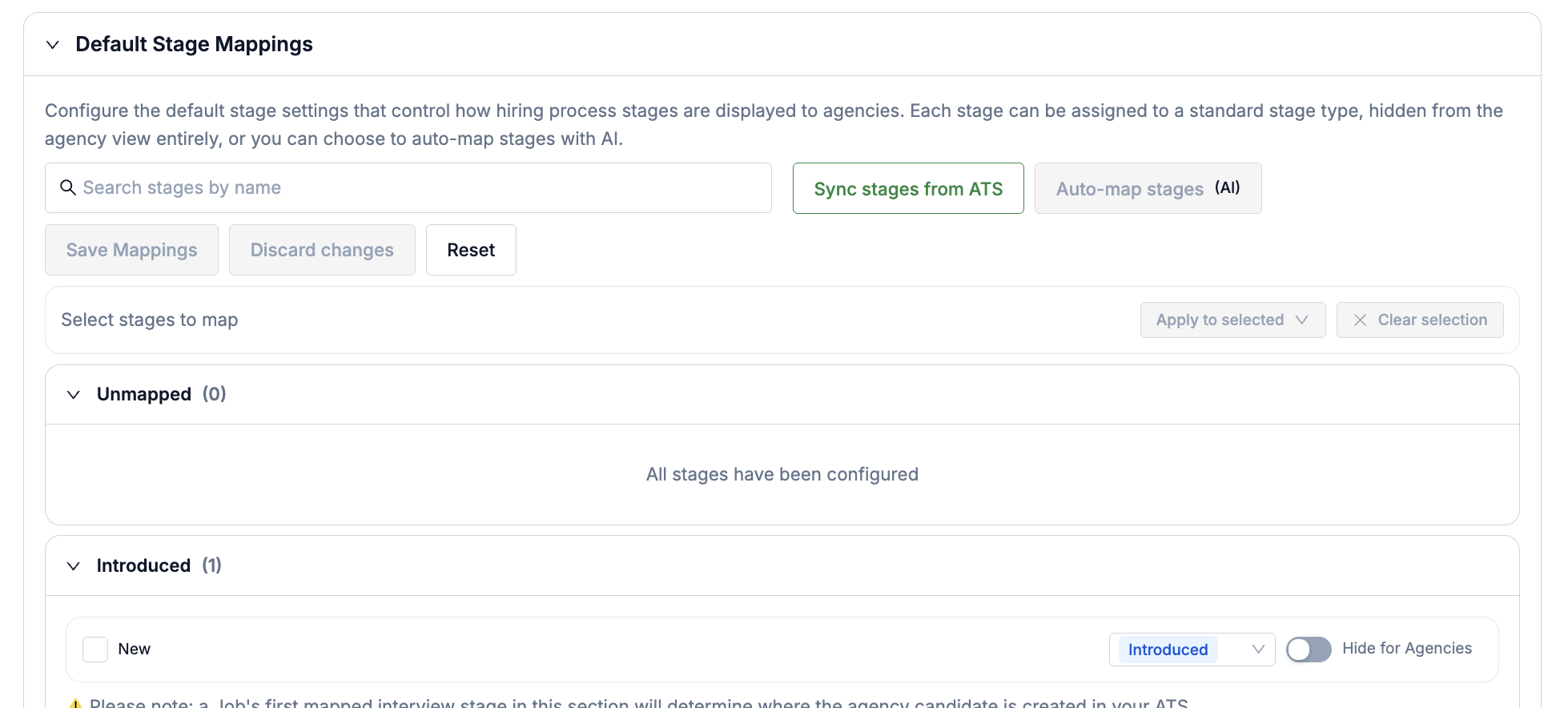
Default Stage Mappings actually control two things: which of your ATS stages are visible to agencies, and which stages trigger automated email notifications to agencies as a candidate is moved through them in your ATS. Each stage can be assigned to a standard stage type, hidden from agency view entirely, or auto-mapped with AI.
⚠ Only map substages, not mainstages. For example, map a substage like Interview: Video Interview, not the mainstage Interview itself.
⚠ A job's first mapped stage at Introduced in this section determines where the agency candidate is created in your ATS.
To configure your stage mappings:
Click Sync stages from ATS to pull in your latest stages, or click Auto-map stages (AI) to have the system suggest mappings automatically.
For each substage, choose a stage type from the dropdown (for example, Introduced), or turn on Hide for Agencies to keep an internal-only stage invisible to agencies.
Drag a stage to reorder it into the right position.
Use the search box, or the Unmapped and mapped-stage groups, to find a stage quickly. Select multiple stages with the checkboxes and use Apply to selected to map them all at once.
Click Save Mappings when you're done, or Discard changes / Reset to undo your edits.
⚠ If your default stage mappings are not configured correctly, this will cause synchronization issues to the agency side of the portal.
Permissions
⚠ Chat & Communication and Fee Approvals each have additional settings that control who can see what in the Advanced Agency Portal. Some of these can be set at the Hiring Team role level, but the permissions listed below are based on system roles.
Set system role-based access across features.
Use the System role dropdown to select a system role from your ATS.
Configure the permissions below for that role:
Master Contracts
None – no visibility
View – read-only access
Manage – full access to create, view, edit, and delete
Agencies
None – no visibility
Assign – view and assign agencies to jobs
Manage – full administration
Chat with Agency Toggle to set whether users with this role can communicate with agencies using the Agency chat.
Email Notifications for This Role Controls whether users with this role can receive agency hiring related email notifications.
Support
If you need more assistance, contact SmartRecruiters technical support