Agency Portal Settings Guide - Initial setup
Last updated: April 3, 2026
The Agency Portal Settings define how agencies work with you. These settings should be configured as part of the initial setup before inviting agencies.
In this section, you control key behaviors such as default language and currency, duplicate candidate prevention, agency recruiter permissions, communication preferences, ATS integration, and role-based access. Configuring these options upfront helps ensure clear ownership, smooth collaboration, and proper alignment with your SmartRecruiters workflows.
This article provides an overview of each setting and explains how it impacts agency activity across the platform.
In this article:
Accessing the Agency Portal Settings
Basic portal settings
Duplicate candidate prevention
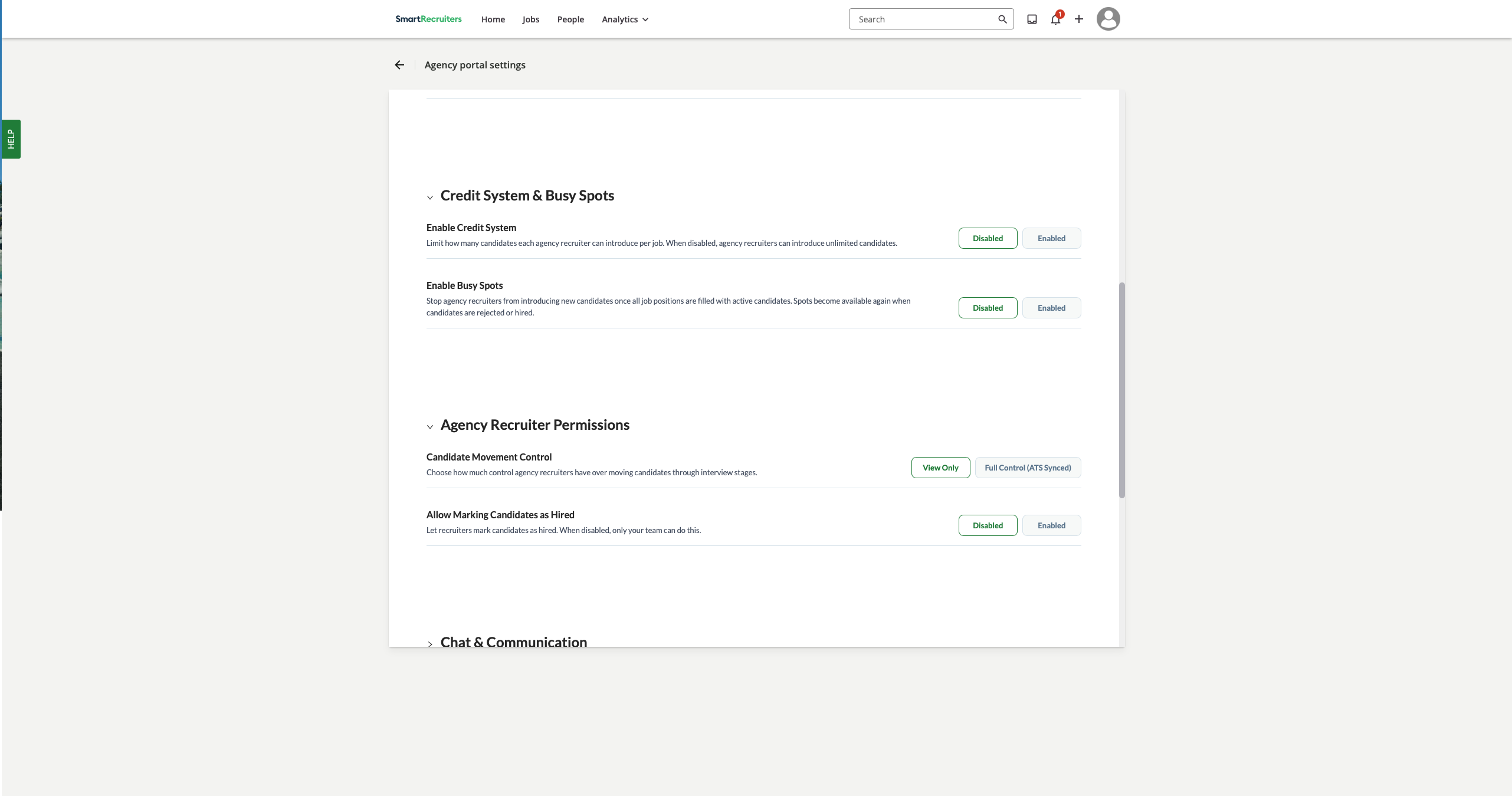
Credit system & busy spots
Agency Recruiter Permissions
Chat & communication
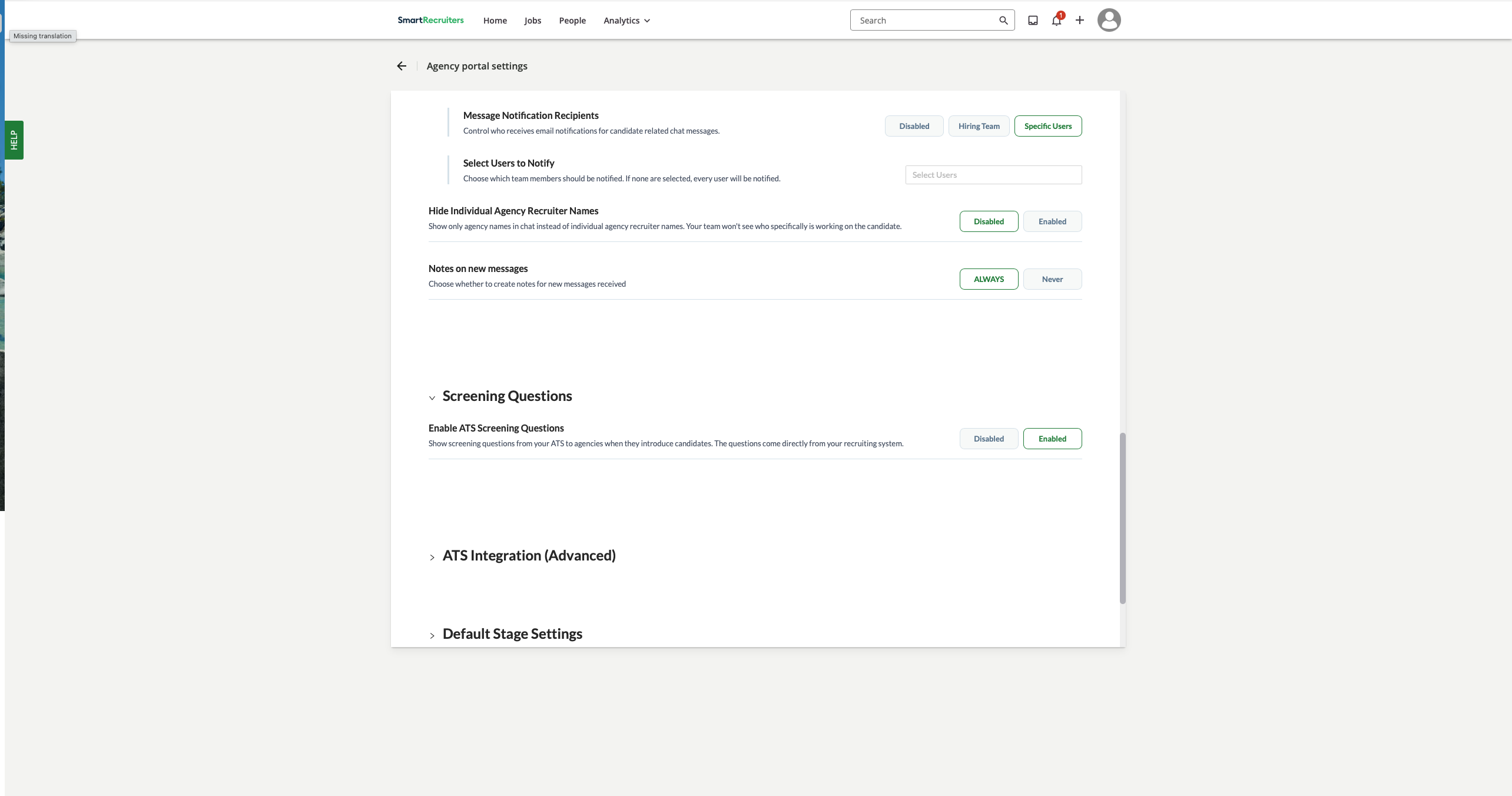
Screening questions
ATS integration (Advanced)
Default stage settings
Permissions
Troubleshooting & support
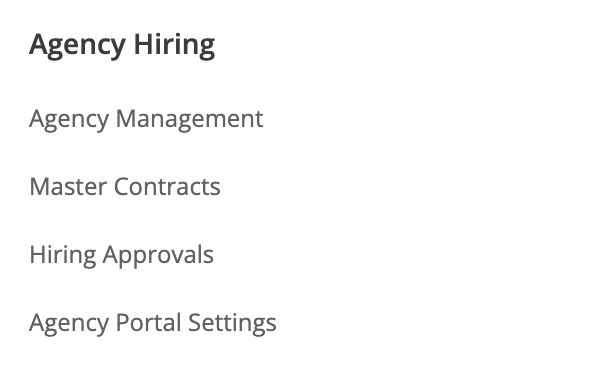
Accessing the Agency Portal Settings
You can find the "Agency Portal Settings" within the settings area.
Basic Portal Settings
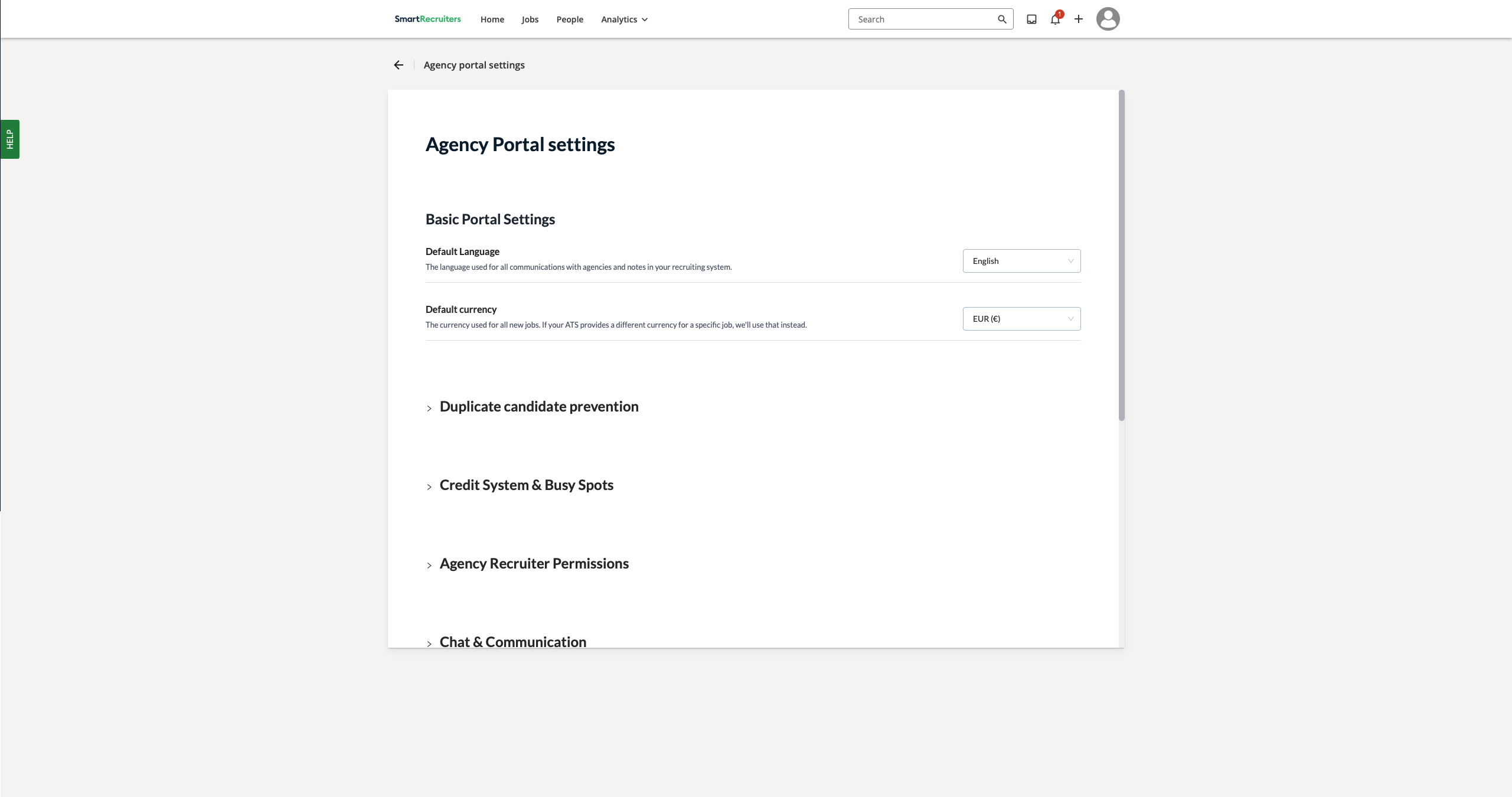
At Basic Portal Settings we control:
The default language for agency hiring
The default currency for agency hiring
Duplicate candidate prevention
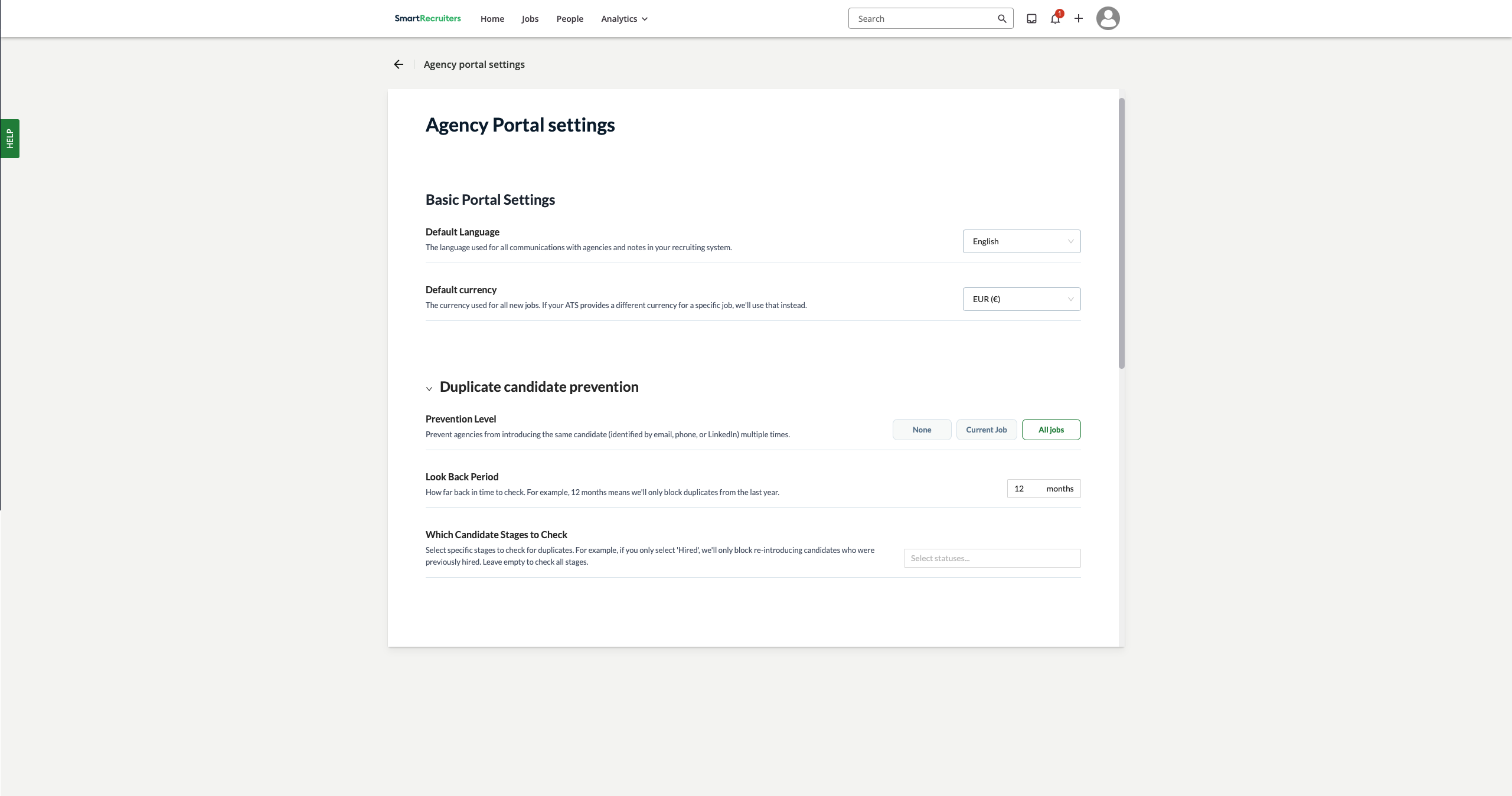
⚠ Please make sure to correctly set how duplicates are handled.
Choose whether agency candidates are blocked on only the Current job or on All jobs. If only Current Job is checked, than all agencies can propose the same candidate on different jobs.
The look back period determines the time an agency has ownership, after introducing the same candidate that an other agency might propose.
Credit System & Busy Spots
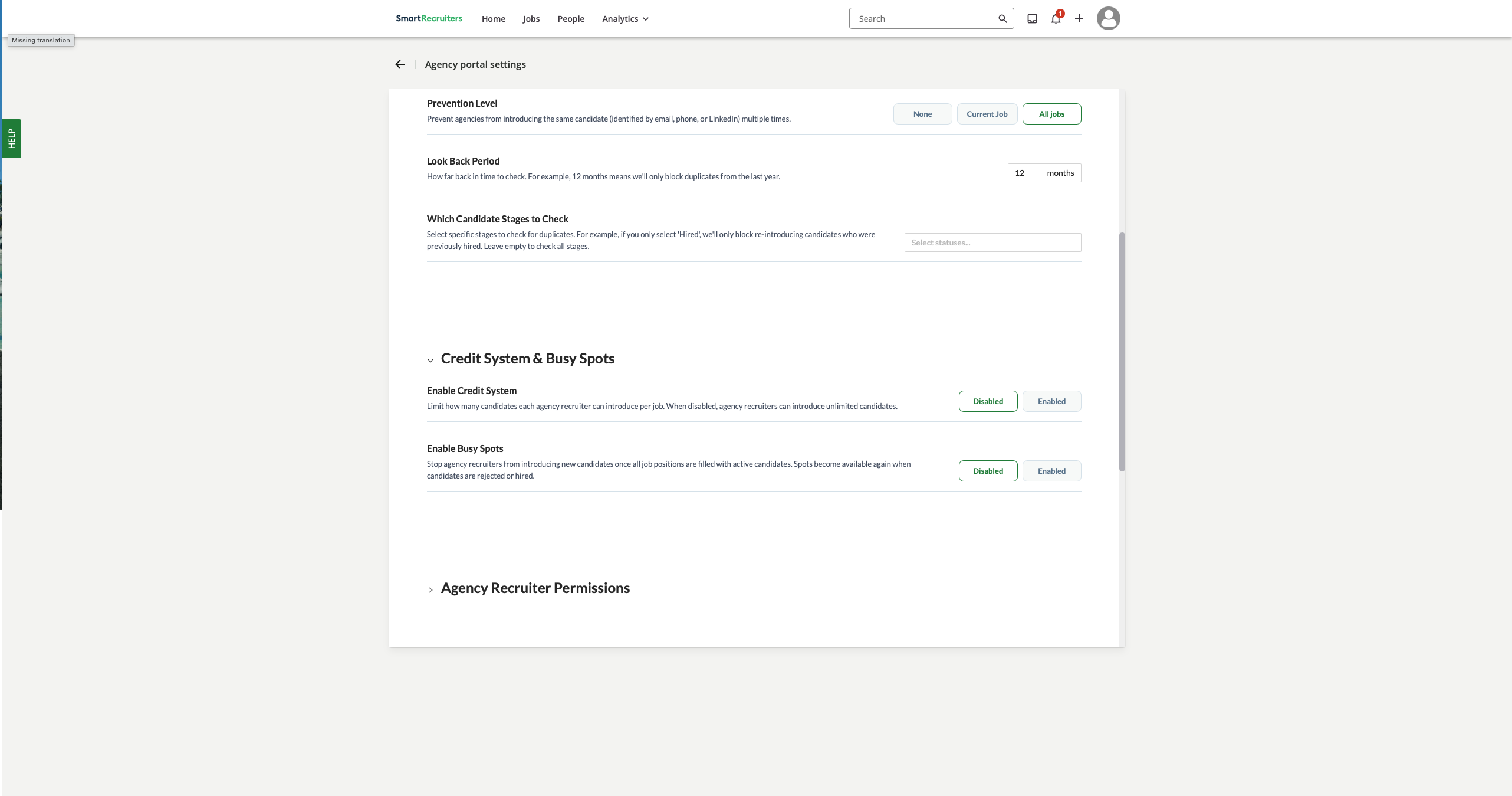
The credit system limits the amount of candidates that an agency user can propose to a job. The intention is to let them select Only the best suited candidates.
For every candidate that is moved in SmartRecruiters to interviews, a new credit is awarded to the agency user. When a candidate is rejected, the agency doesn't receive a new credit.
Busy spots helps you let agency recruiters focus on roles that need the most attention instead of proposing candidate to jobs with already properly filled candidate pipelines.
Agency Recruiter Permissions
You decide how much agency recruiters can move candidates.
View only means HirePort's environment for the agency recruiter, follows all movements in the ATS.
⚠ Full Control (ATS Synced) gives your recruiters full ability to move candidates in your SmartRecruiters instance (except for to Hired, which is handled in the next setting).
On top of moving candidates in the pipeline, you can even give agency recruiters the ability to move candidates to Hired in SmartRecruiters.
Chat & communication
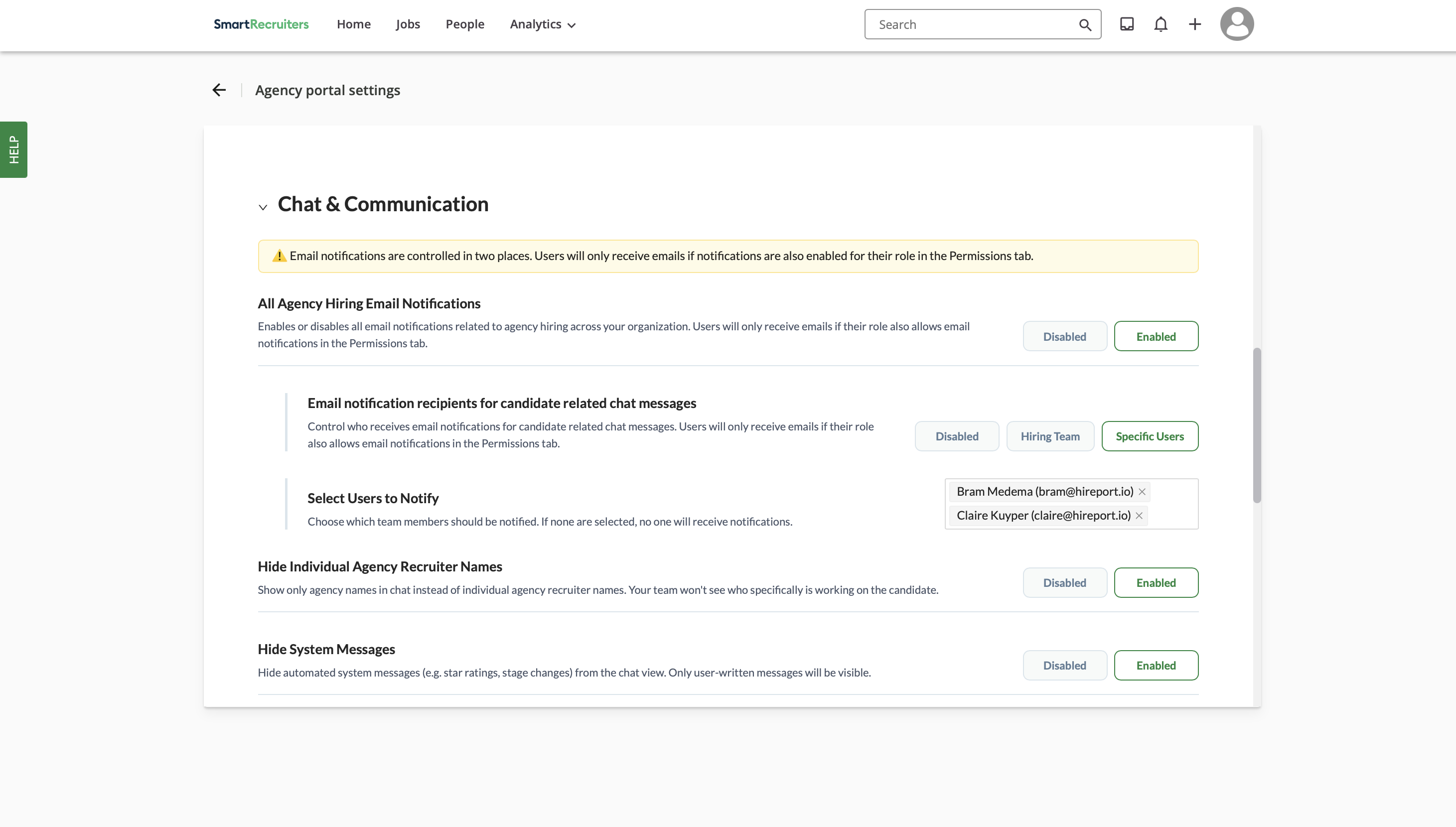
All Agency Hiring Email Notifications
This is your master switch for agency-related email notifications. When Enabled, your team can receive emails about agency hiring activity; but only if their role also has email notifications turned on in the Permissions tab. Toggle this off to silence all agency hiring emails across your org instantly.
Email Notification Recipients for Candidate Related Chat Messages
Control who gets notified by email when a new candidate-related chat message arrives. Choose Disabled to send no emails, Hiring Team to notify everyone on the candidate's hiring team, or Specific Users to hand-pick exactly who gets notified.
Select Users to Notify
This appears when "Specific Users" is selected above. Search for and add the team members who should receive candidate chat message emails. If no one is added here, no notifications will be sent.
Hide Individual Agency Recruiter Names
When Enabled, your team will only see the agency's name in chat — not the individual recruiter's name. Useful for keeping communication clean and brand-consistent when working with multiple agency contacts.
Hide System Messages
HirePort automatically logs system events in chat (like star rating changes and stage updates). Toggle this to Enabled to hide those automated messages and keep the chat view focused on real, human-written conversations only.
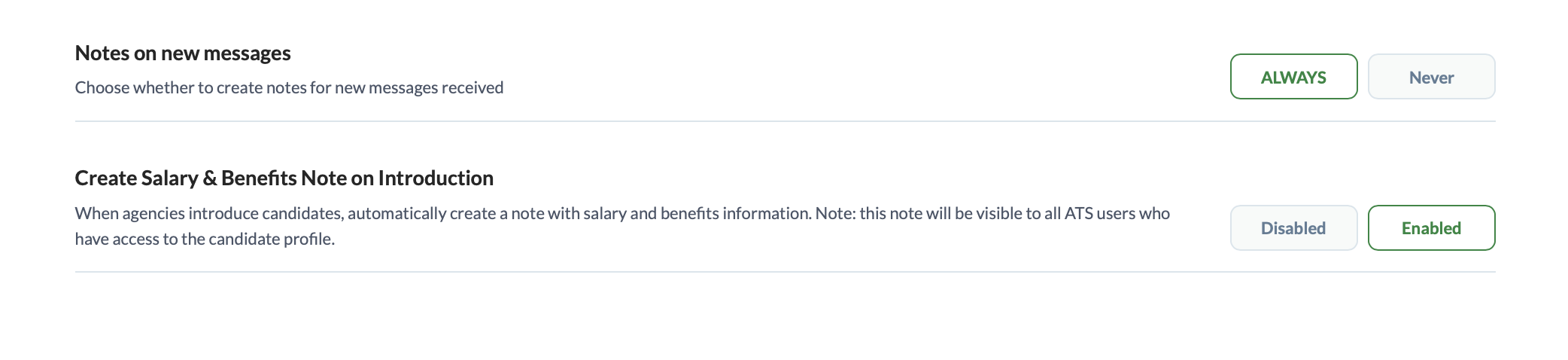
Notes on New Messages
Decide whether the Advanced Agency Portal should automatically create a note every time a new message is received. Set to Always to log every incoming message as a note, or Never to skip note creation entirely. Shown on the right side of the candidate profile in SmartRecruiters.
Create Salary & Benefits Note on Introduction
When Enabled, the Advanced Agency Portal will automatically generate a note containing salary and benefits details whenever an agency introduces a candidate.
Screening questions
Enabling ATS Screening Questions let's agencies fill in the screening questions that normally are filled in by the candidate if they apply directly.
These screening questions are presented the moment an agency user proposes a candidate to your job.
These screening questions are also shown in HirePort at the bottom of the Job page.
ATS integration (Advanced)
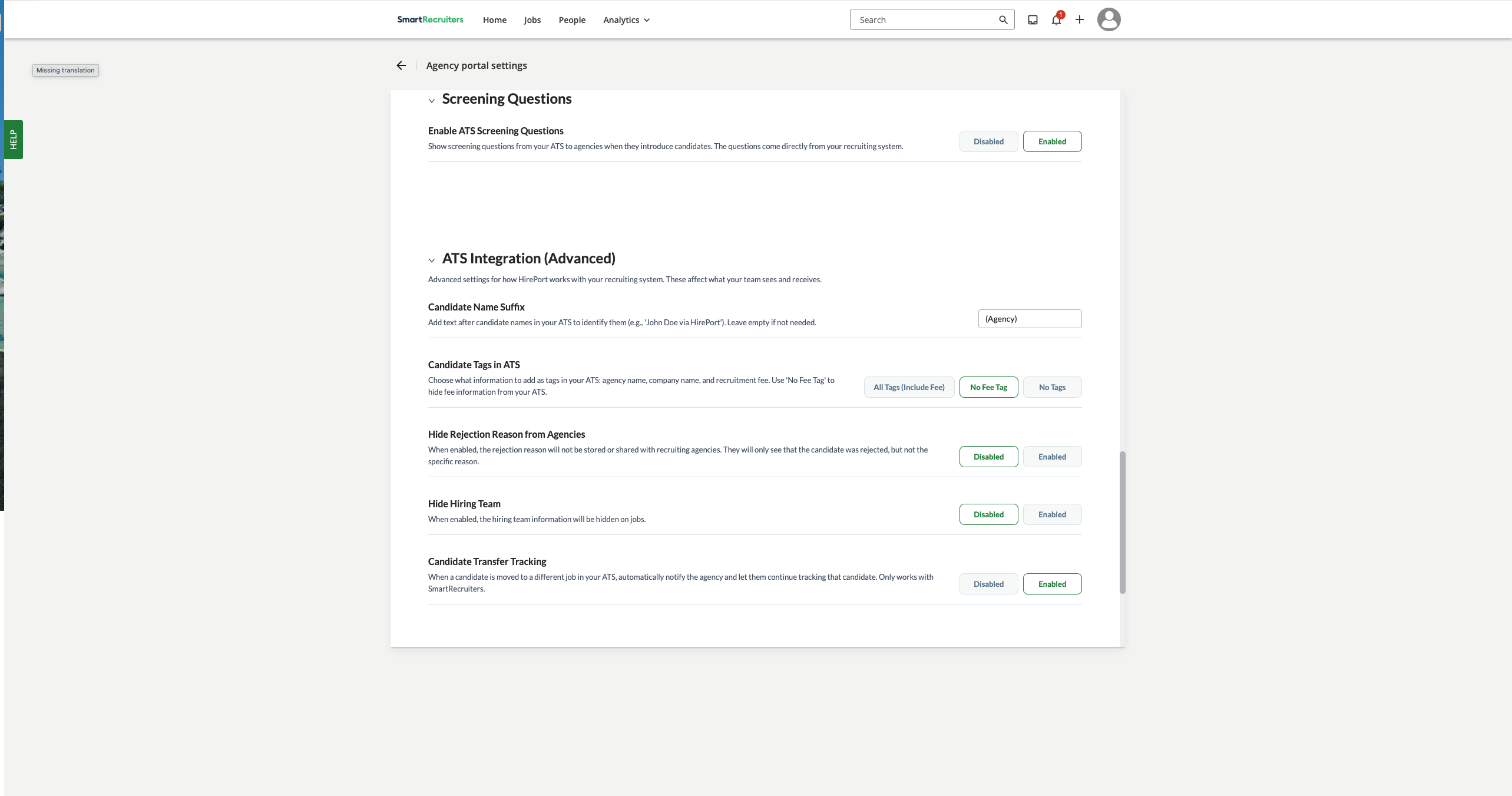
Adjust Advanced settings:
Suffix behind candidate names to see agency candidates instantly
Switch on/off the creation of tags for agency candidates in your ATS
Choose to share or hide rejection reasons with agencies
Show or hide the Hiring team on the job page in HirePort
Candidate transfer tracking: If you wish to still keep an agency updated on their candidate, when the candidate is moved from one job to another, then set this setting to Enabled.
When the candidate is transferred to another job in SmartRecruiters, a new interview is created where the source is still the agency that has proposed the candidate in the first place. The agency remains updated on all candidate movements in this new interview process.
Candidate Source Label: If your Company prefers one uniform label for a candidate from an agency, instead of the agency name (which is standard), then fill in that label in the textbox.
⚠ Make sure not to use a label that would interfere with labels you choose for other channels like social media, career site etc.
Default stage settings
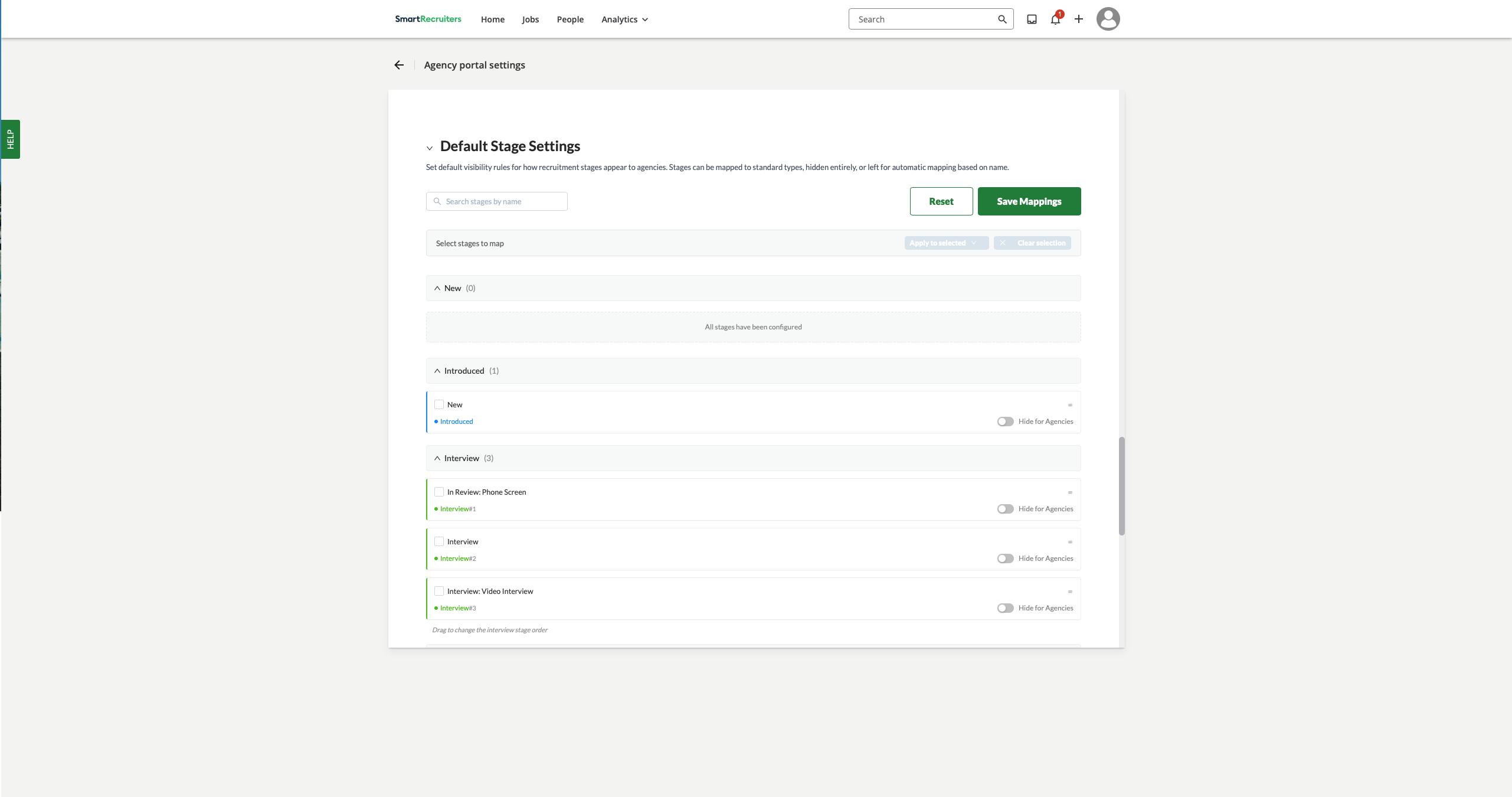
At Default Stage Settings you set the stages on which agencies get updates and have visibility.
Only the stages which you drag and drop in the stages below, trigger emails to the agencies and show movements in their candidate pipeline in HirePort.
⚠ The first stage of a Job which is mapped at Introduced, defines in which stage the agency candidate flows into the ATS.
Click 'Hide for Agencies' for stages that are private to your organization or on which you don't want to give agencies updates.
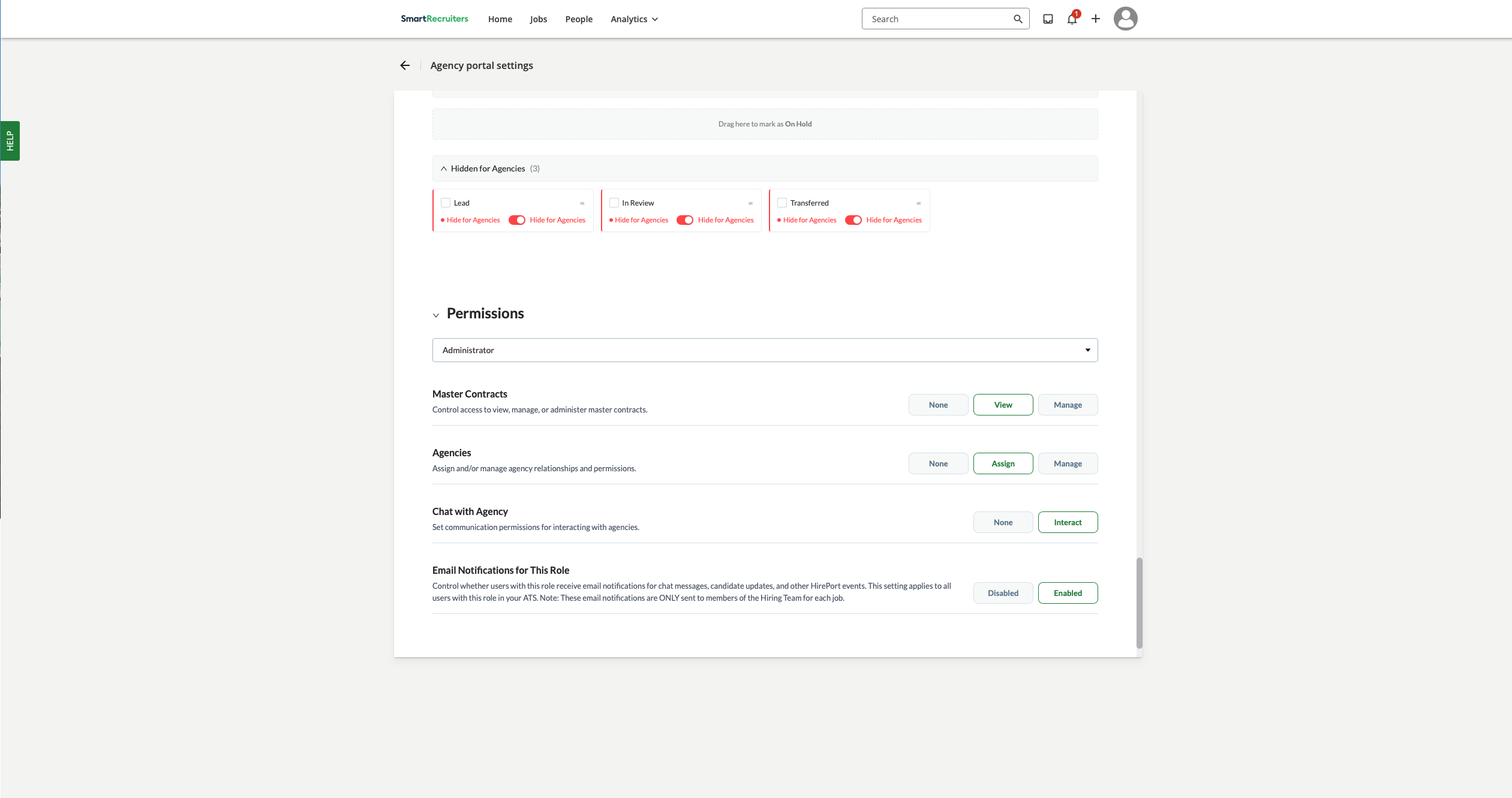
All the hidden stages for agencies, show up below.
Permissions
At Permissions, we can set what each type of user can do. These are the same types of users/roles as those you have specified in SmartRecruiters.
Select the role type in the drop down menu and decide what you want this type of user can see, view or manage in the Advanced Agency Portal.
Select a Role to Configure
At the top of the permissions section, you'll find a dropdown menu (often labeled "Select Role" or similar)
Click this dropdown to choose the user role you want to configure (e.g., "Standard User," "Manager," "Administrator," or specific roles synced from your Applicant Tracking System like SmartRecruiters)
The permissions displayed on the page will reflect the current settings for the selected role
Managing Permissions for Features: Below the role selector, you'll see a list of HirePort features or modules. For each feature, you can set a specific permission level for the selected role. Common features include:
Contracts: Controls access to viewing and managing contract agreements.
None: The role cannot see or interact with contracts
View: Users in this role can see contracts but cannot make changes
Manage: Users can view, create, and edit contracts
Admin: Users have full control, including viewing, creating, editing, and deleting contracts
Agencies: Manages interactions with recruitment agencies.
None: The role cannot see or interact with agencies
Assign: Users can view agencies and assign them to jobs
Manage: Users can view and edit agency details
Admin: Users have full control, including adding, editing, and removing agencies
Chat: Governs access to chat functionalities.
None: The role cannot use the chat features
Interact/Admin: Users can view and participate in chats.
Email notifications for this role:
Determine which type of users receive email notifications about activities within the Advanced Agency Portal.
⚠ These messages are sent ONLY to members of the Hiring Team.
Troubleshooting & Support
If you don't see the success message or encounter any issues during the integration process:
Ensure you have the necessary administrative permissions
Clear your browser cache and try again
Contact SmartRecruiters technical support for assistance