Keeping an Agency Updated When Adding a Candidate to Another Job
Last updated: April 15, 2026
This article explains how to add a candidate to a different job in SmartRecruiters while ensuring the originating agency remains linked and continues to receive updates on that candidate's progress.
In this article
Overview
Enabling Candidate Transfer Tracking
Adding a Candidate to Another Job
Overview
When a candidate submitted by an agency is a good fit for a different role, you can add them to another job directly from their candidate profile in SmartRecruiters. By maintaining the original source during the transfer, the agency stays linked to the candidate and continues to receive updates throughout the new hiring process. A new agency chat will also be opened on the candidate profile linked to the destination job.
Enabling Candidate Transfer Tracking
Before you can keep an agency linked when adding a candidate to another job, you need to make sure the setting is turned on. Go to Settings and scroll down to Agency Portal Settings. Under ATS Integration (Advanced), find Candidate Transfer Tracking and set it to Enabled.
Adding a Candidate to Another Job
Open the candidate's profile in SmartRecruiters.
In the right-hand panel, click the three dots (⋯) button next to the Move forward and Reject buttons.
Select Add to another job from the dropdown menu.
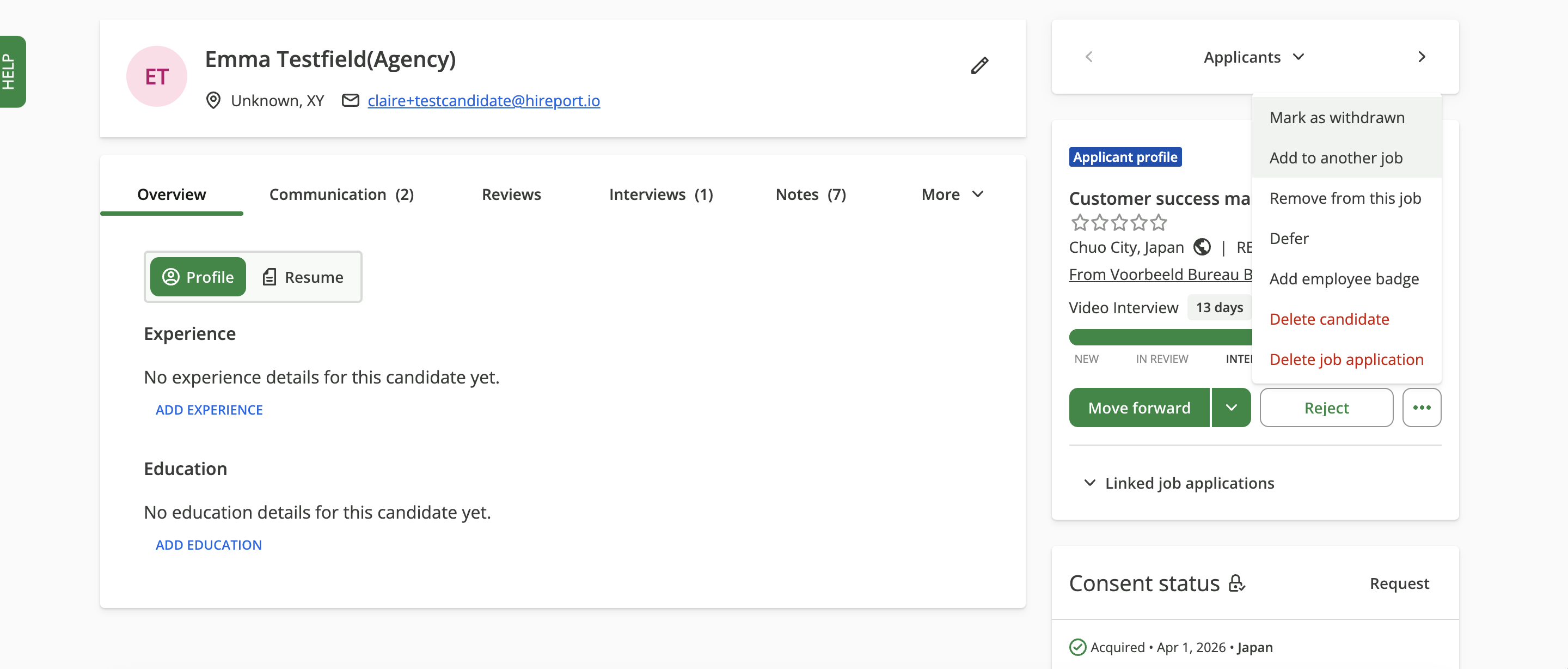
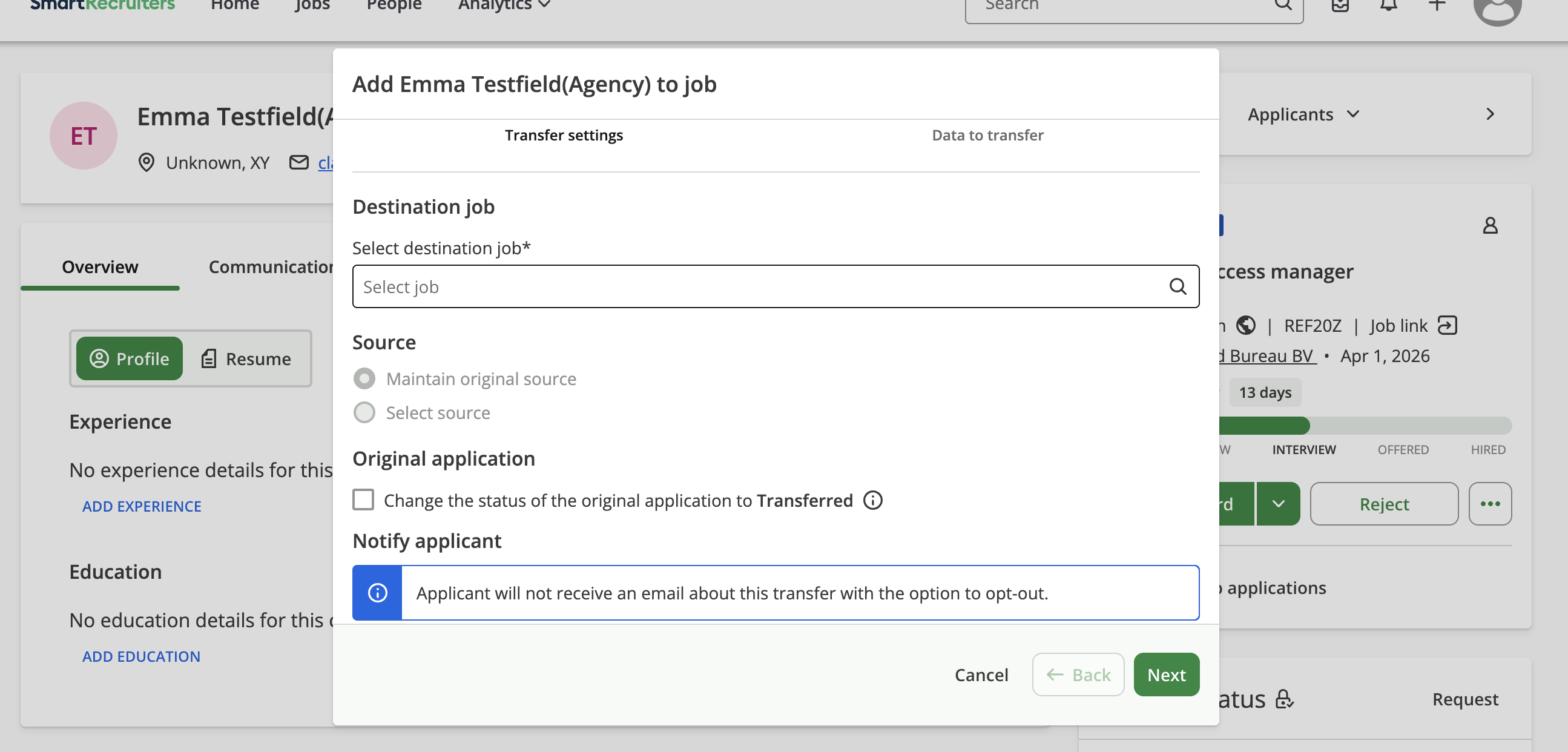
In the pop up screen, use the Select destination job field to search for and select the job you want to transfer the candidate to.
Under Source, select Maintain original source. This is essential to keep the originating agency linked to the candidate.
Click Next.
Click Add candidate to complete the transfer.
Important: Always select Maintain original source during the transfer. If this option is not selected, the agency will not be linked to the new interview and will stop receiving updates.
Need help?
Please contact SmartRecruiters support.