Submitting a candidate
Last updated: October 12, 2026
This article explains how to submit a candidate to a client through HirePort's structured submission form, ensuring your proposal is complete and profesisonal.
In this article
Step 1: Create and complete the candidate profile
Step 2: Complete the candidate profile
Step 3: Submit your candidate proposal
Extra option: Submit your candidate proposal from the job
Support
Step 1: Create a candidate profile
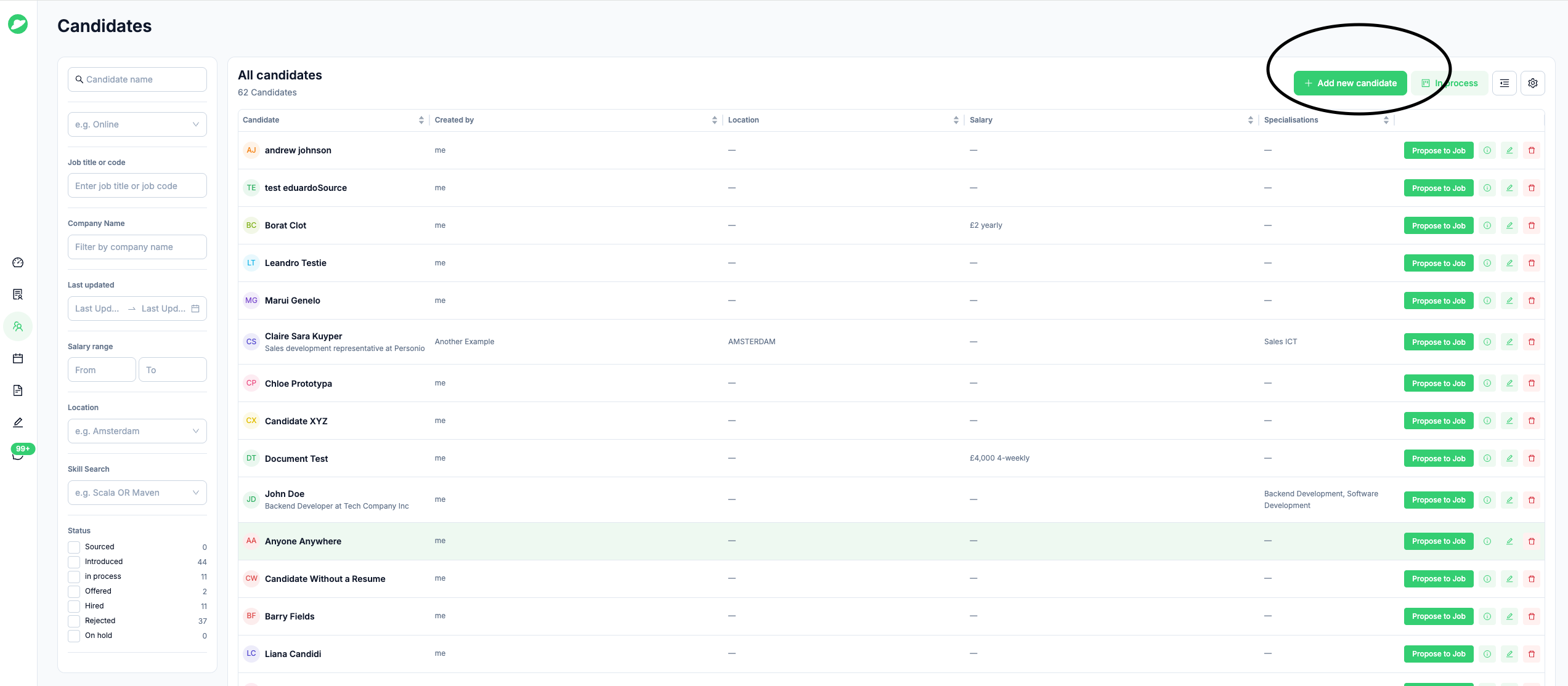
Go to the Candidates overview.
Click + Add a new candidate to create a new candidate profile.
Tip: You can also bulk upload multiple candidates at once using CV files (PDF, DOC, DOCX, TXT) or a CSV file. CSV templates are available to download, a basic template (required fields only) and a complete template (all available fields). Use the Upload Multiple Files button or drag and drop files directly onto the screen. The form will auto-fill and auto-save.
Step 2: Complete the candidate profile
Fill in the candidate details using the sections below (if you didn't use the CV upload function).
Bulk upload (optional, top of form)
Download a CSV template: Basic (required fields only) or Complete (all available fields)
Upload multiple CV files (PDF, DOCX, TXT) or CSV files, or drag and drop them anywhere on the screen
Candidate details
First name *
Last name *
Email *
Phone
LinkedIn profile link
Lives in (e.g. Amsterdam)
Upload CV (max 2MB)
Upload additional files (max 10 files, 10MB each; PDF, DOC, DOCX, TXT, PNG, JPG)
The form notes that companies are expected to contact candidates only through the agency, unless otherwise agreed.
Specialisation
Seniority (dropdown)
Specialisations (dropdown)
Skills (max 10)
Current job
Current role
Current company
Compensation (preset values the agency can change later when introducing the candidate to a specific role)
Currency (dropdown, e.g. GBP £)
Type of employment * (e.g. Permanent Employment)
Salary
Salary interval (dropdown)
Notice period (months)
“Add another” button to add another employment type or compensation set
Current contract (dropdown to select the contract type)
Additional info
Free-text notes. These are private and not visible to companies, so the agency can use them for their own reference when introducing the candidate later.
The form is submitted with Add new candidate.
Step 3: Submit your candidate proposal
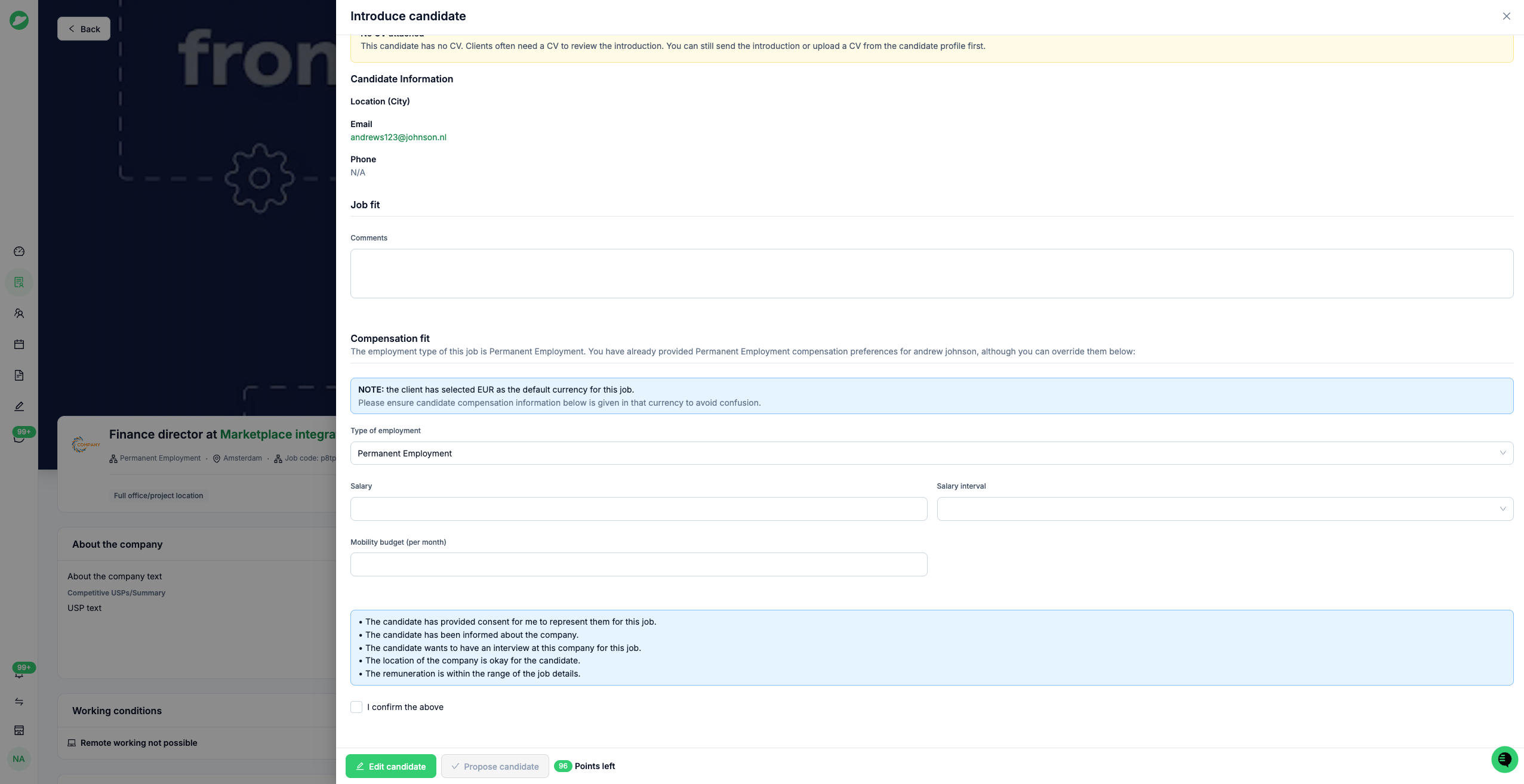
From within the candidate overview, click Propose to job for the relevant candidate.
Select the relevant position.
Complete the required fields:
Candidate introduction
Match explanation
Candidate's motivation
Additional comments
Confirmed salary expectations
Review the information and check the confirmation box.
Click Propose candidate.
Extra option: Submit your candidate proposal from the job
Open the jobs overview.
Open the job you would like to propose a candidate to.
Click Propose to Job.
Complete the required fields:
Candidate introduction
Job fit/candidate's motivation
Additional comments
Confirmed salary expectations
Review the information and check the confirmation box.
Click Propose candidate.
Need Help?
Check our knowledge base for detailed guides and tips
For support, click the ? in the bottom right corner of HirePort to start a chat
Not logged in? Email your question to support@hireport.io
For job-specific questions, reach out to your customer through the chat functionality
Remember: Your success is our success. We're here to help you make the most of HirePort!