Managing Agency Lists (Inviting/managing multiple agencies at once)
Last updated: June 15, 2026
This article explains how to invite multiple agencies at once using the Agency List option in SmartRecruiters, and how to organise your agencies into lists after they've been added.
In this article
How agency lists work
Inviting agencies via a list
Creating a list from existing agencies
Help & support
How agency lists work
Agency lists let you group agencies together for easier management. You can use lists to organise agencies by tier, department, or any other category that works for your team, for example, "Tier 1", "Tier 2", or "Agencies for Finance Vacancies".
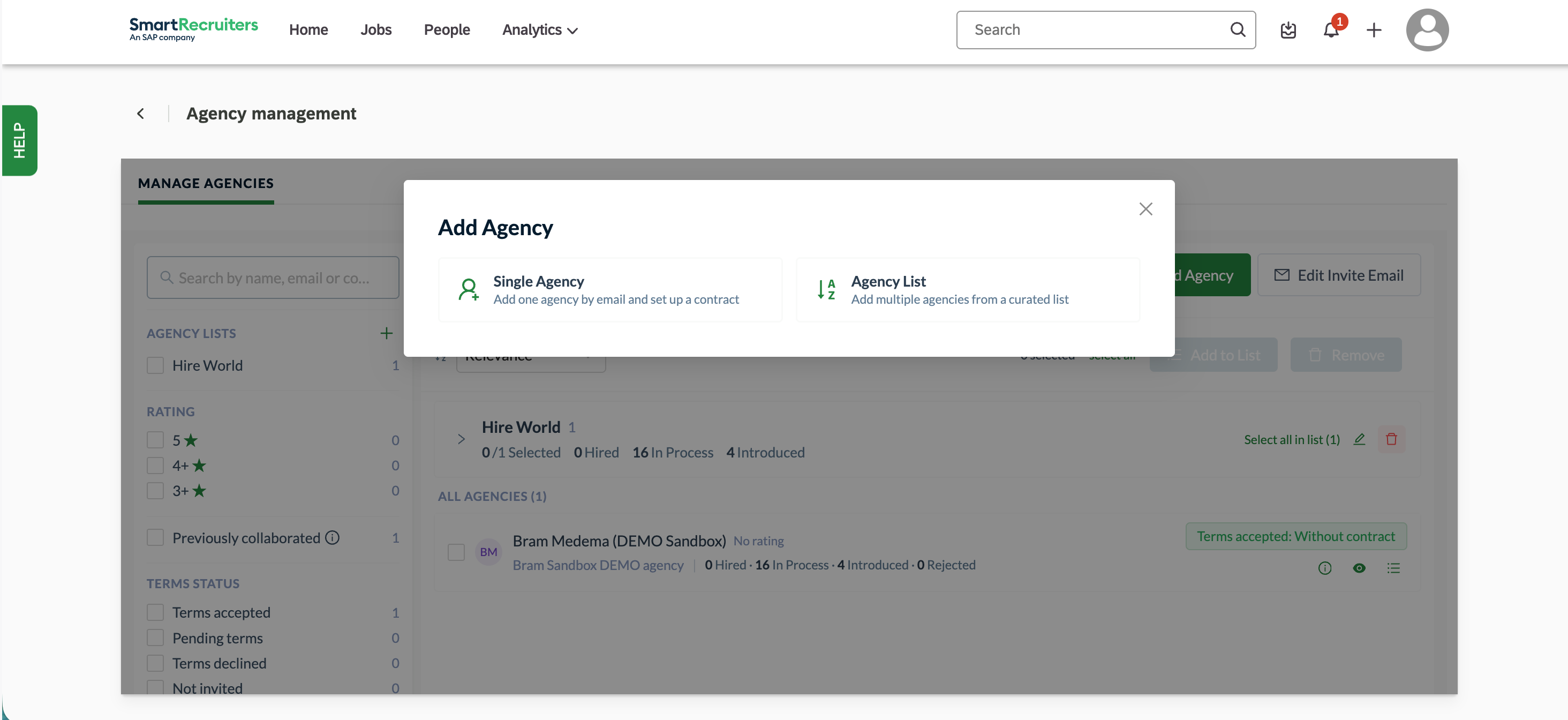
The invitation flow works the same way as inviting a single agency, with one difference: you select Agency List instead of Single Agency. You can invite agencies manually by email, or upload a CSV file (for example, exported from another system) to invite multiple contacts at once.
Inviting agencies via a list
Go to Agency Management in SmartRecruiters.
Click Add Agency (top right).
In the dialog, select Agency List (instead of Single Agency).
Enter a name. This name is only visible to you for internal organisation.
Add agency contacts by entering their email addresses and names, or upload a CSV file by dragging it into the upload area or clicking to browse.
Complete the remaining steps as you would for a single agency invitation.
Tip: Each invited contact will be able to add their own colleagues later. All members of the list will have access to the jobs you assign to them.
Creating a list from existing agencies
You can also create and manage lists after agencies have already been added.
Go to Agency Management.
Select the agencies you want to group by ticking their checkboxes.
Click the + icon next to Agency Lists in the left panel.
Enter a name for the list (e.g. "Tier 1", "Tier 2", "Finance Agencies") and confirm.
The selected agencies will be added to the new list immediately.
Need help?
Contact SmartRecruiters support.