How do I use the Agency chat?
Last updated: February 20, 2026
Maintaining clear communication with recruitment agencies is essential for successful hiring, but traditional email chains and phone calls often lead to lost or scattered conversations, delayed responses, inefficient information sharing and difficulty tracking discussion history.
The Advanced Agency Portal provides a communication system that keeps all agency interactions organized, contextual, and easily accessible within your recruitment workflow.
There are two ways to access the Agency chat:
From candidate profiles (candidate specific chats)
Through your inbox (both candidate specific and general agency communication)
In this article:
Accessing agency communications
From candidate profiles
Through your inbox
Starting conversations
Best practices
Help & support
Accessing agency communications
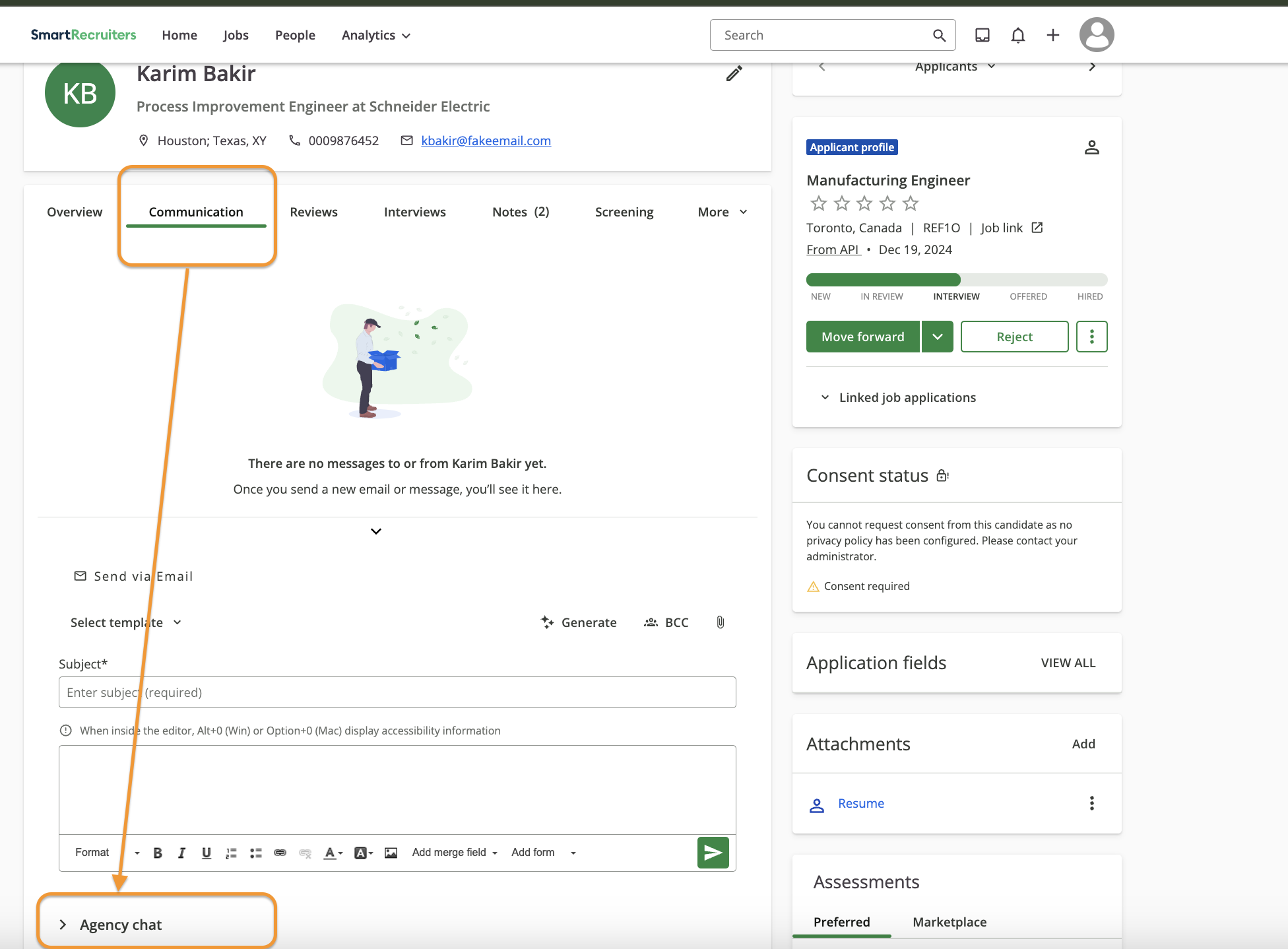
From candidate profiles
Navigate to Jobs and select position
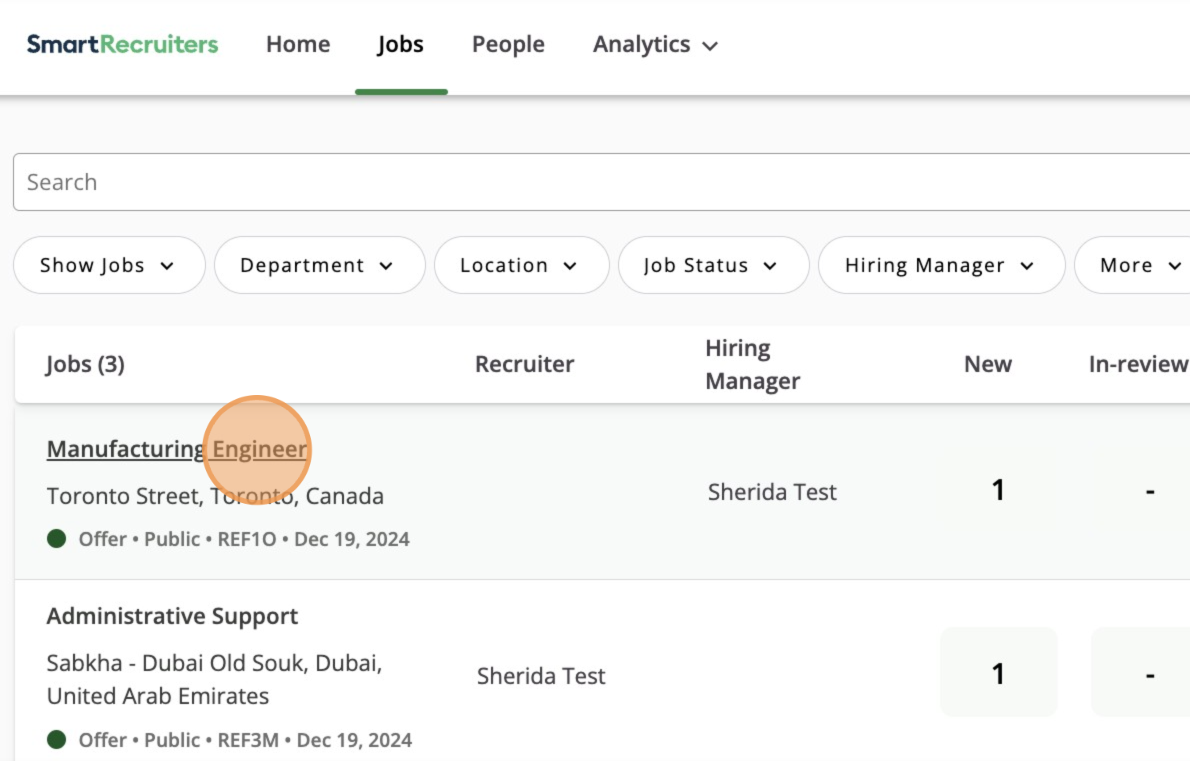
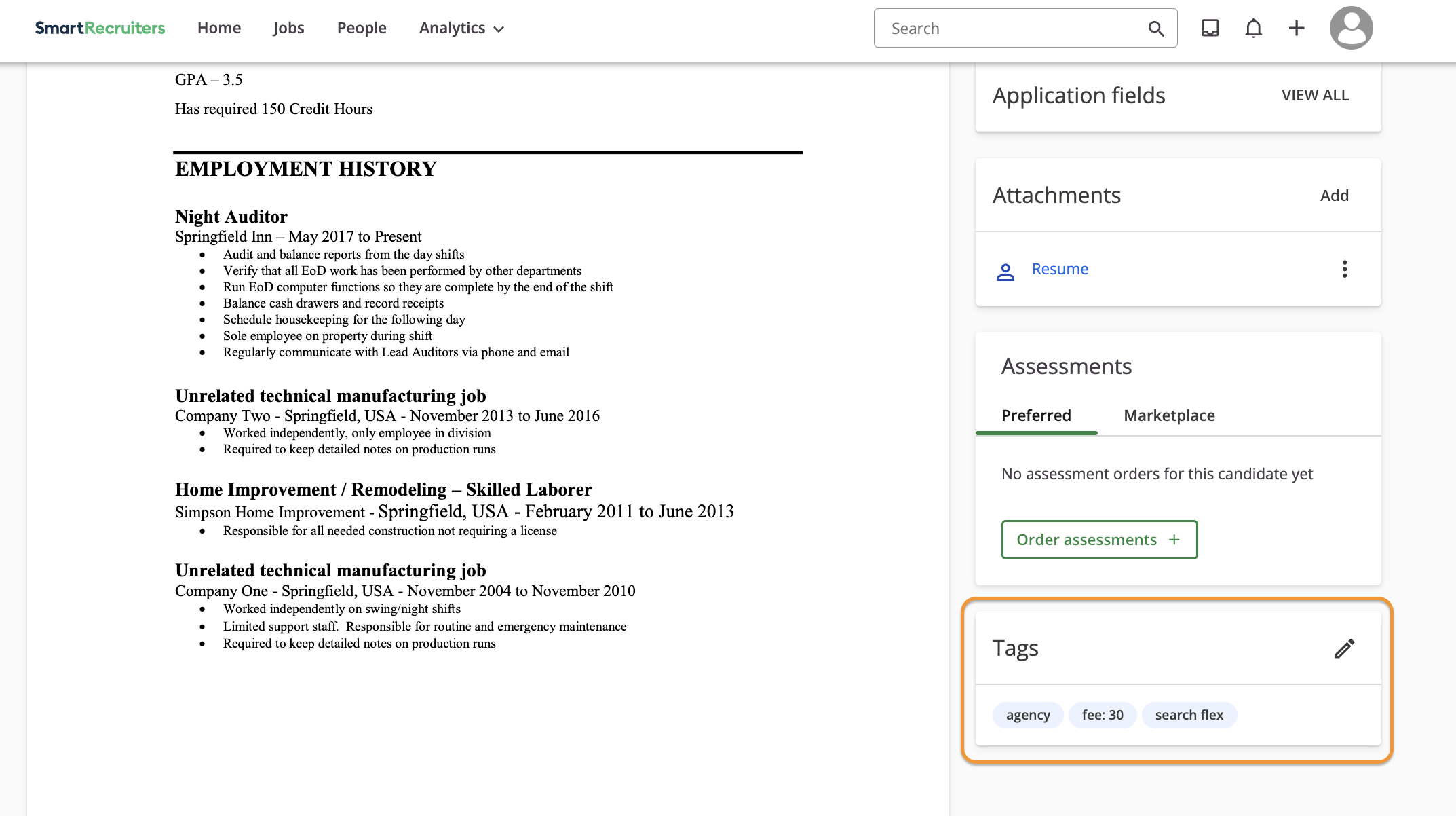
Click on the candidate name (who was introduced by an agency)
Locate Agency Chat within the tab Communication at the bottom of the page
Through your inbox
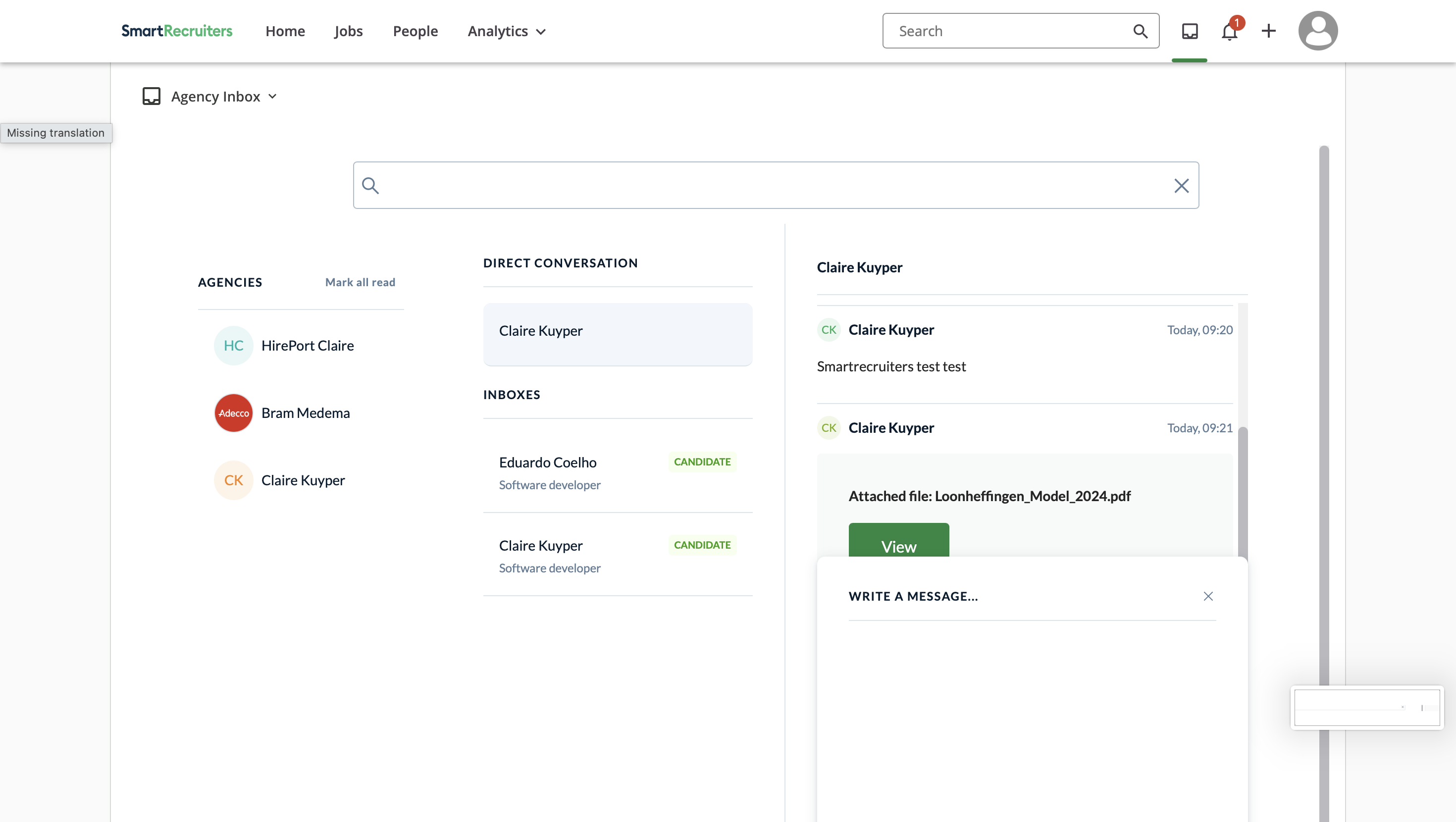
Click on the inbox icon in SmartRecruiters next to the search bar
Click on My Inbox and choose Agency Inbox in the drop down menu. You'll see both direct conversations with agencies and you'll see specific, candidate related chats. Documents shared in your direct conversations will only be saved here, documents shared in candidate specific chats will also be shown on the candidate profile.
Starting conversations
Click "Write a message..." to open text field
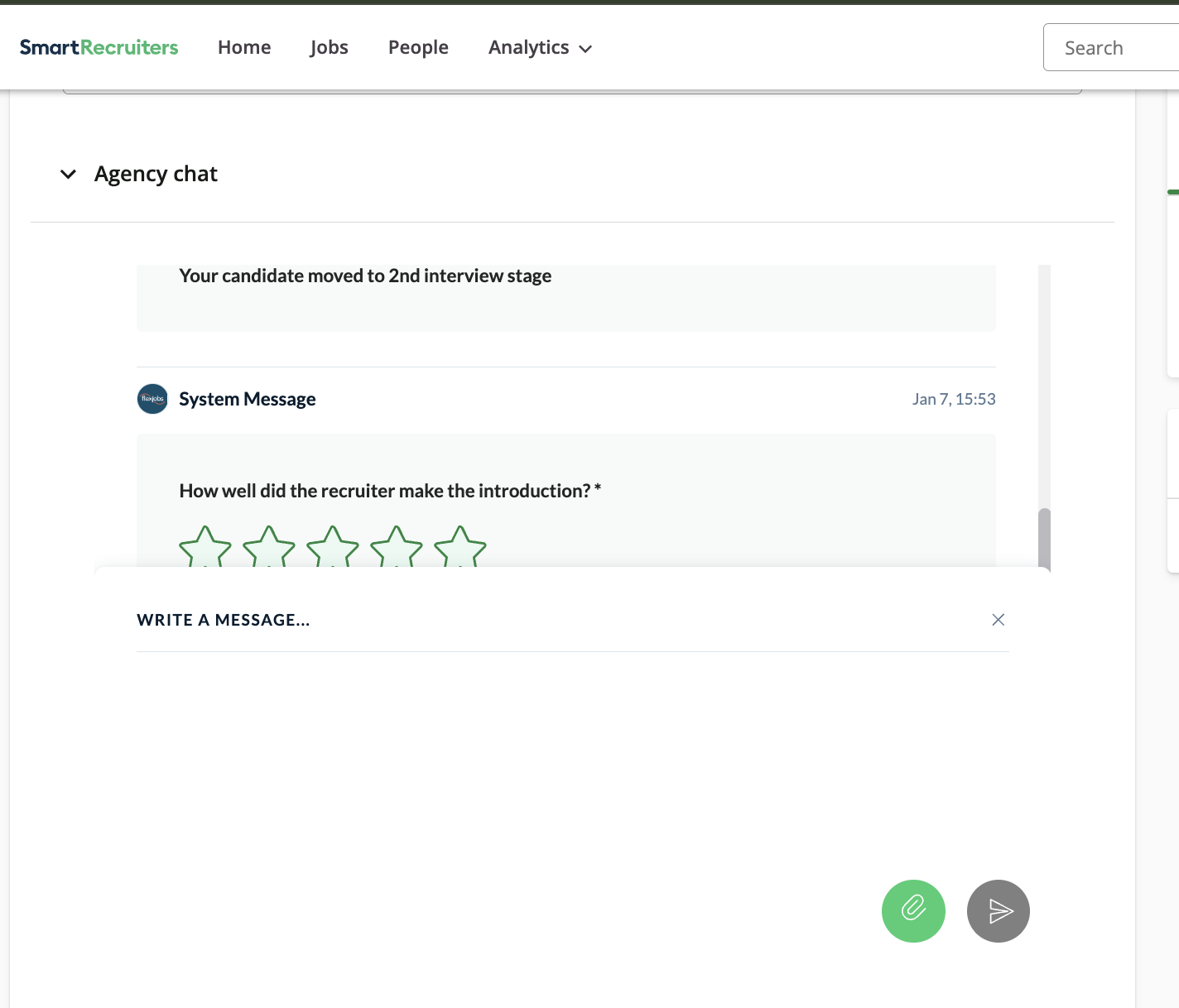
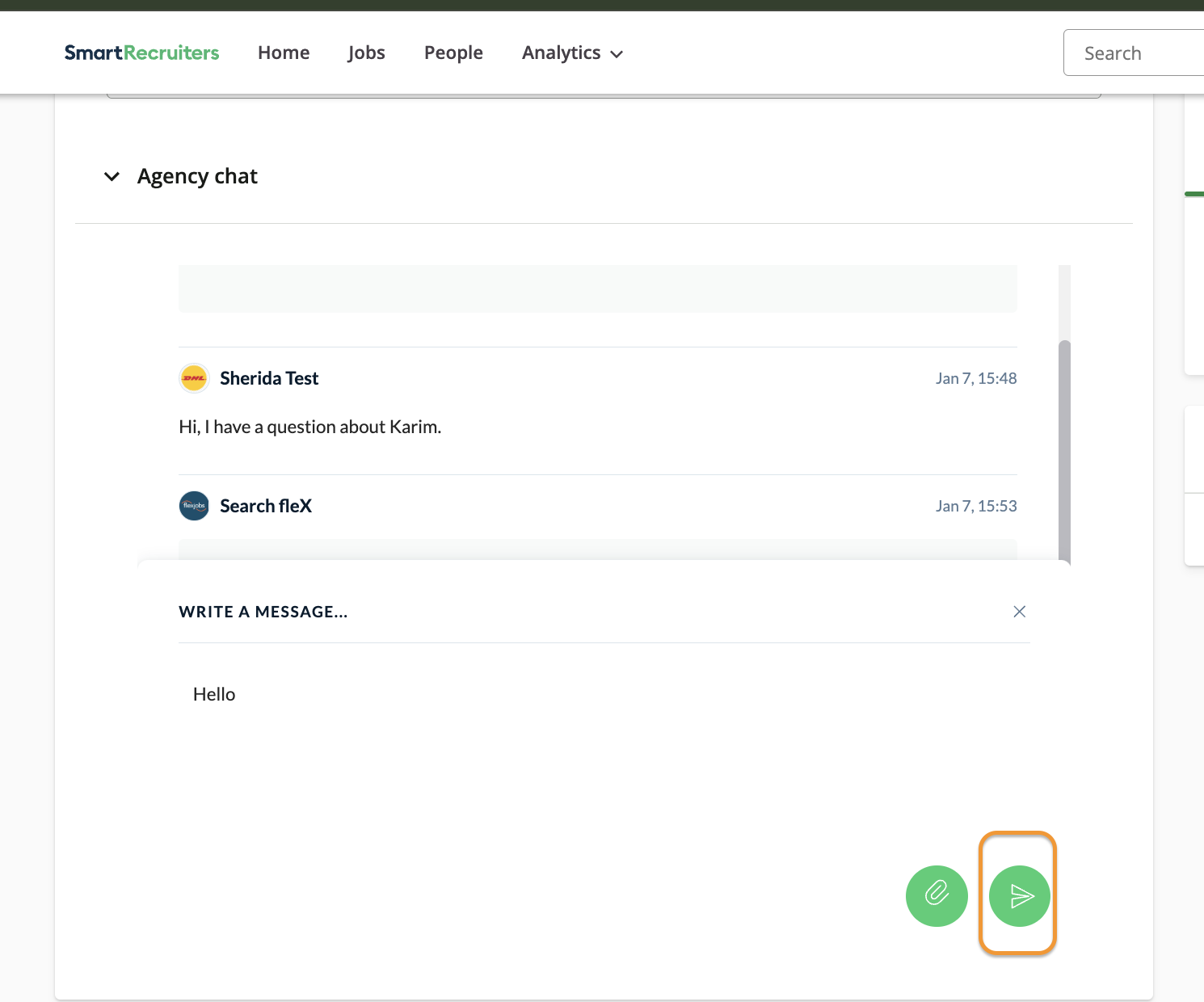
Type your message
Click send icon to deliver message
Best practices
Effective communication
Keep all discussions within the platform
Reference specific candidates by name
Be clear and concise
Respond promptly to queries
Document important decisions
Search functionality:
Keyword search
Candidate name
When to message agencies
Requesting candidate information
Providing feedback
Scheduling interviews
Discussing next steps
Clarifying candidate details
Sharing updates or changes
Note: All chat history is permanently stored and can be accessed for compliance and audit purposes.
Need Help?
Contact SmartRecruiters support