Updating Your Profile & Company Settings
Last updated: April 7, 2026
You can update your HirePort profile and company settings at any time to keep your information current and accurate.
In this article
Updating your profile settings
Updating your company settings
Managing your notifications
Changing your password
Updating your profile settings
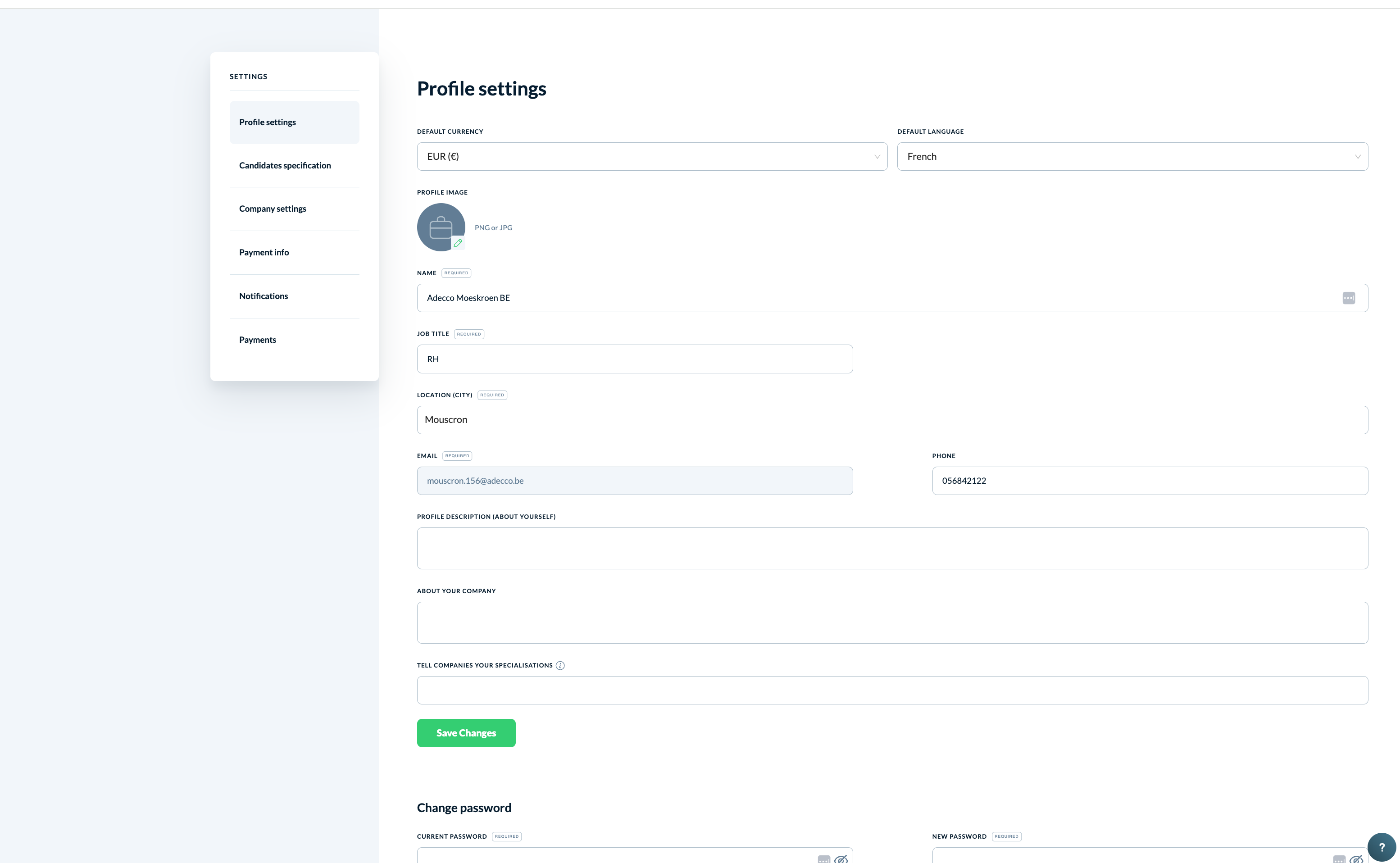
Your profile settings contain your personal contact details and professional information visible to clients.
Click on your initials/profile picture in the left bottom corner of your HirePort platform and select Profile settings.
Update any of the following fields:
FieldDescription
Default Currency
The currency used across your HirePort activity
Default Language
Your preferred platform language
Profile Image
Upload a PNG or JPG image
Name
Your name (required)
Job Title
Your job title (required)
Location (City)
Your city (required)
Email
Your email address (required)
Phone
Your phone number
Profile Description
A short description about yourself
About Your Company
A brief introduction to your agency
Tell Companies Your Specialisations
The areas of expertise you want to highlight to clients
Click Save Changes.
Updating your company settings
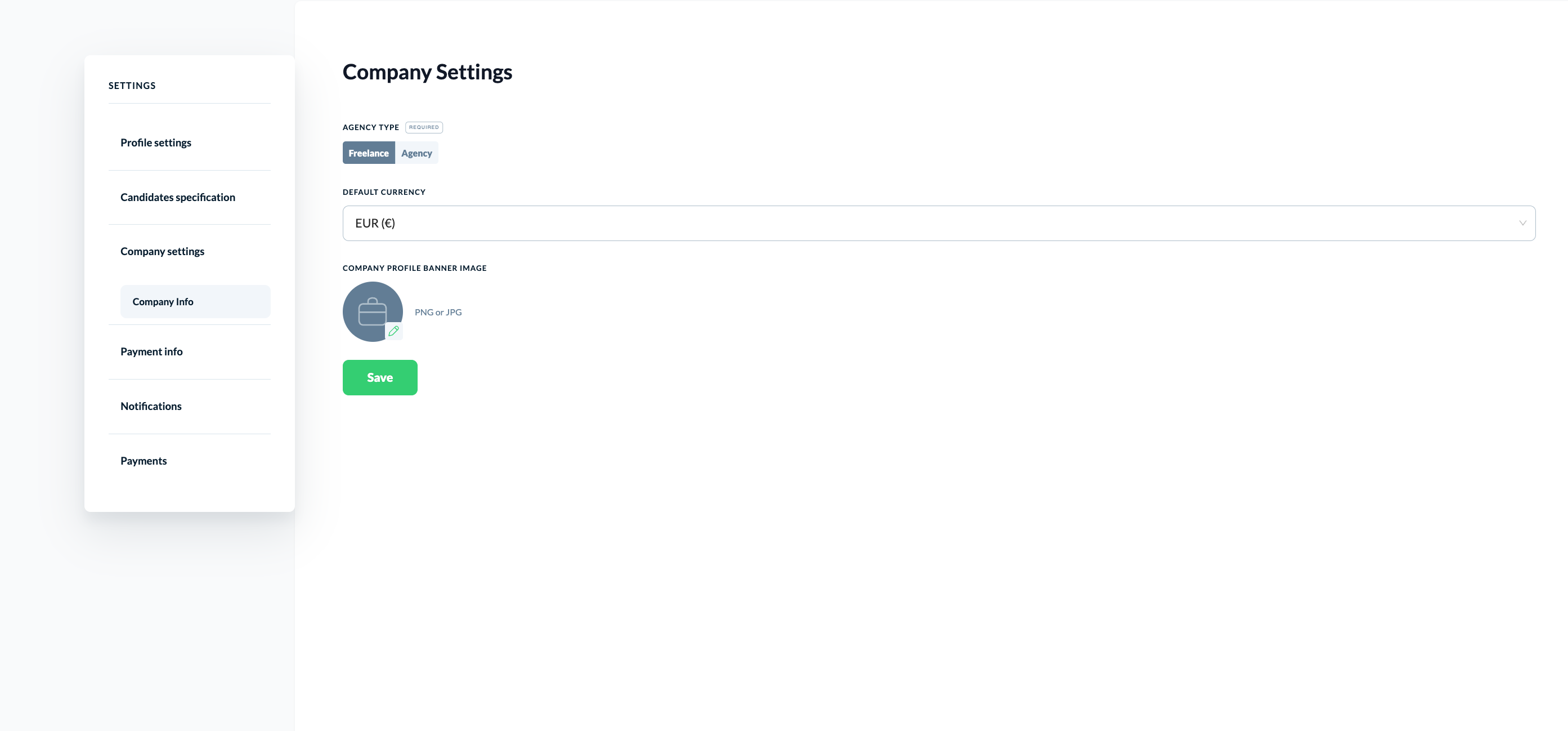
Company settings apply to your agency as a whole.
Click on your initials/profile picture in the left bottom corner of your HirePort platform and select Company settings, then Company Info.
Update the following fields as needed:
FieldDescription
Agency Type
Select either Freelance or Agency (required)
Default Currency
The default currency for your company (required)
Click Save.
Managing your notifications
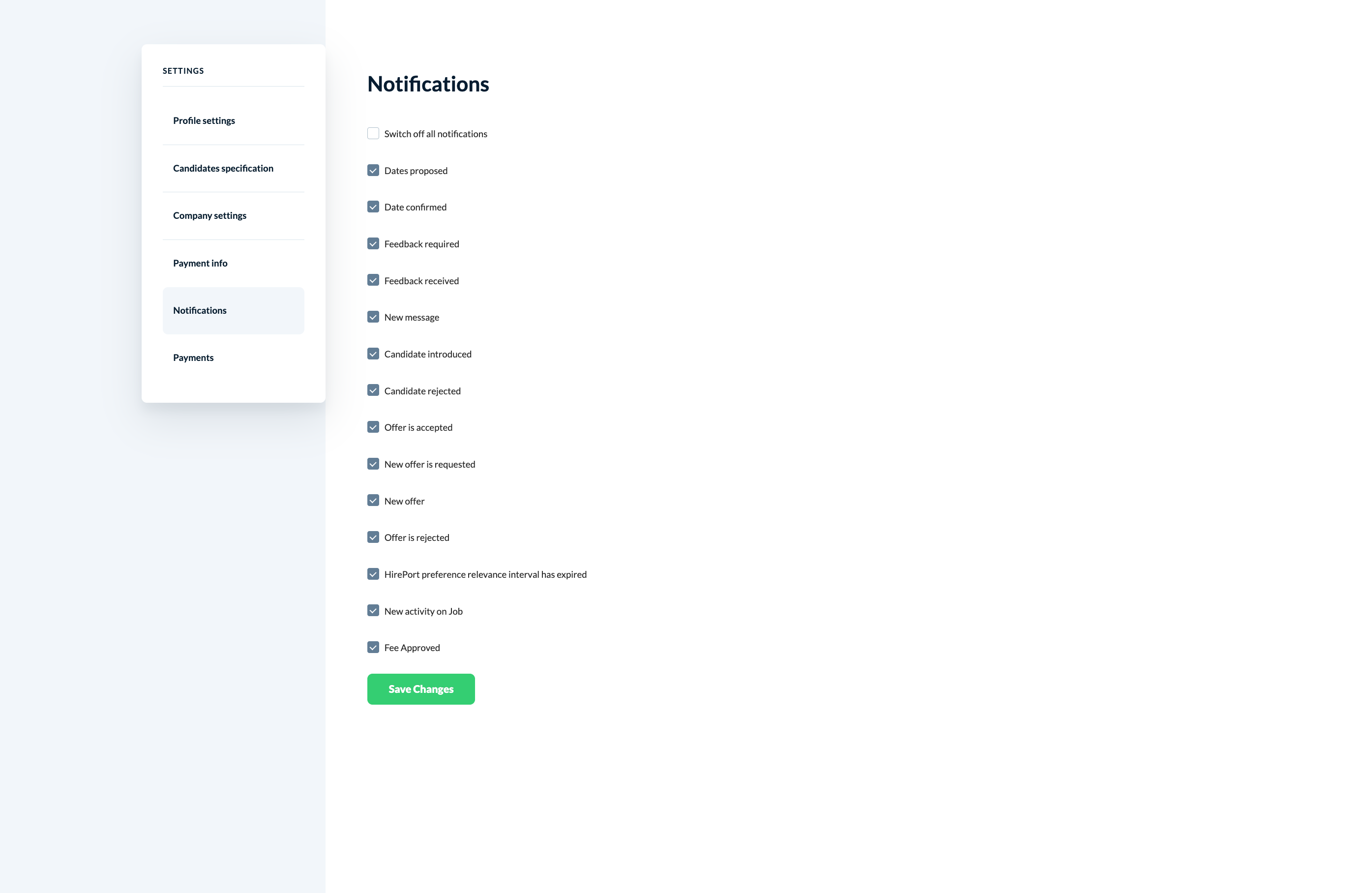
You can control which email notifications you receive from HirePort.
Navigate to Settings and select Notifications.
Enable or disable individual notification types using the checkboxes. Available notifications include:
Dates proposed
Date confirmed
Feedback required
Feedback received
New message
Candidate introduced
Candidate rejected
Offer is accepted
New offer is requested
New offer
Offer is rejected
HirePort preference relevance interval has expired
New activity on Job
Fee Approved
To turn off all notifications at once, check Switch off all notifications.
Click Save Changes.
Changing your password
Navigate to Settings and select Profile settings.
Scroll down to the Change password section.
Enter your Current Password and your New Password.
Save your changes.
Need help?
Check our knowledge base for detailed guides and tips
For support, click the ? in the bottom right corner of HirePort to start a chat
Not logged in? Email your question to support@hireport.io
For job-specific questions, reach out to your customer through the chat functionality
Remember: Your success is our success. We're here to help you make the most of HirePort!