Adding and Inviting Agencies to Recruitee
Last updated: June 16, 2026
Managing agencies in Recruitee is a key step in building an efficient and compliant hiring process. This guide walks you through the prerequisites, setup steps, and best practices for adding and managing agencies in the platform. By following this process, you can ensure agencies are set up correctly, invited smoothly, and ready to collaborate without delays.
In this article:
Prerequisites
Process overview:
Accessing Agency Management
Adding a new Agency
Configuring contract details
Managing Agency Lists
Best practices
Troubleshooting common issues
Security considerations
Help & support
Prerequisites
Access to Recruitee and the right permissions within the Agency Portal Settings
Agency contact information
Defined contract terms and fee structure decisions.
The defined contract terms and fee structure decisions can be saved in the Master Contracts module: if you plan to track financial data, we strongly recommend completing this step before inviting agencies to the platform. Doing so can also save time if you intend to use the same contract for multiple agencies. Otherwise, you’ll need to enter agreement details separately for each agency later.
Process Overview
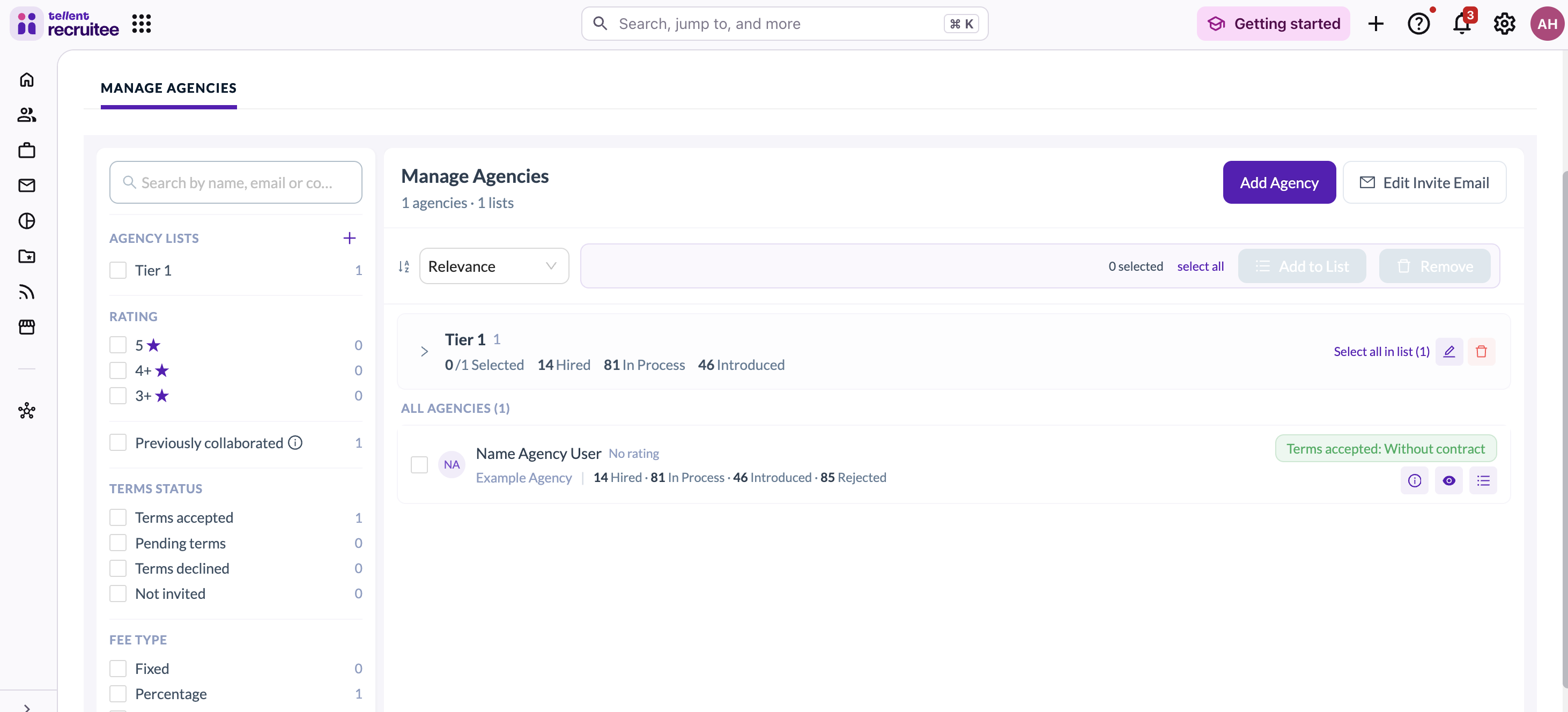
Accessing the Agency Management screen
Navigate to Recruitee
Click the AgencyHub icon in the left sidebar
Adding a New Agency
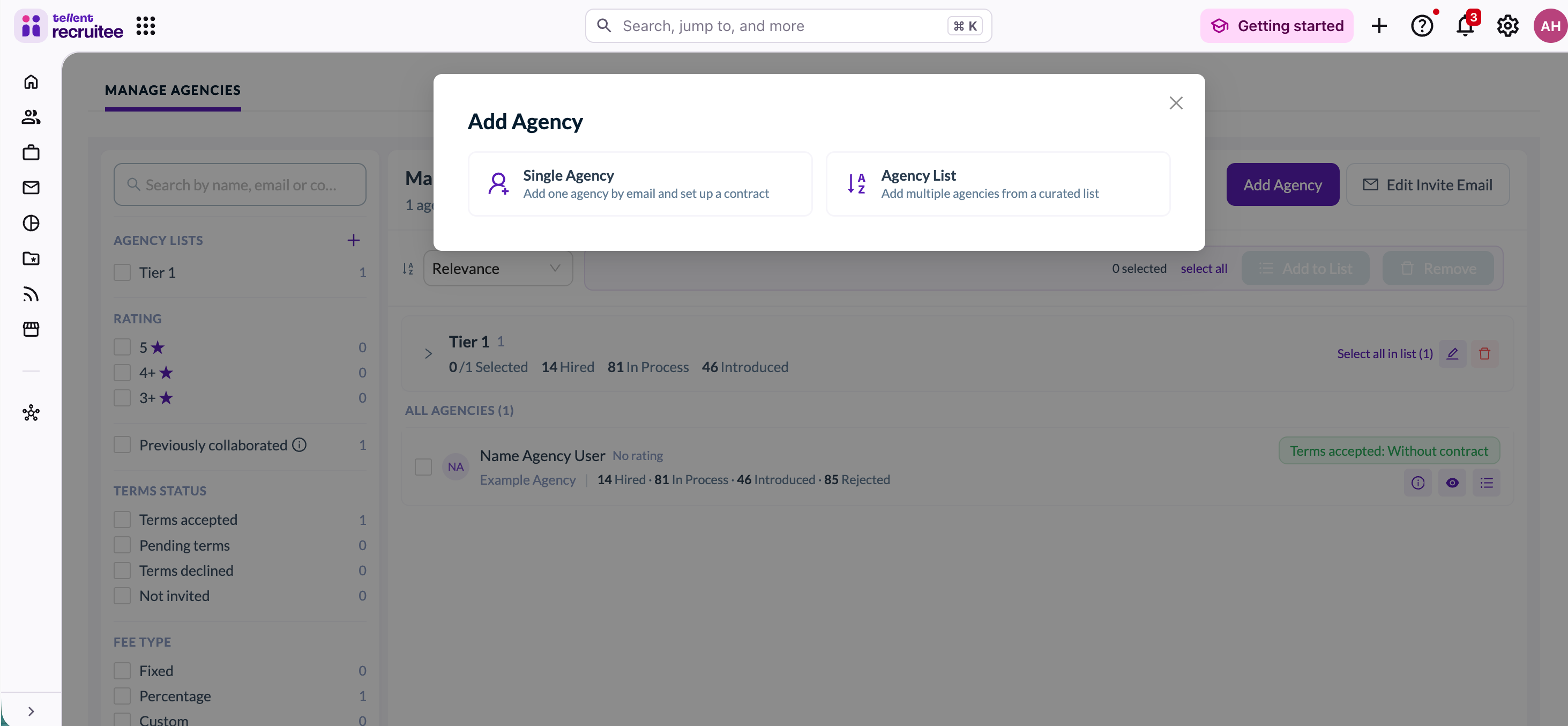
Click "Add Agency" button on the Agency Management page
Choose between a single agency or an agency list
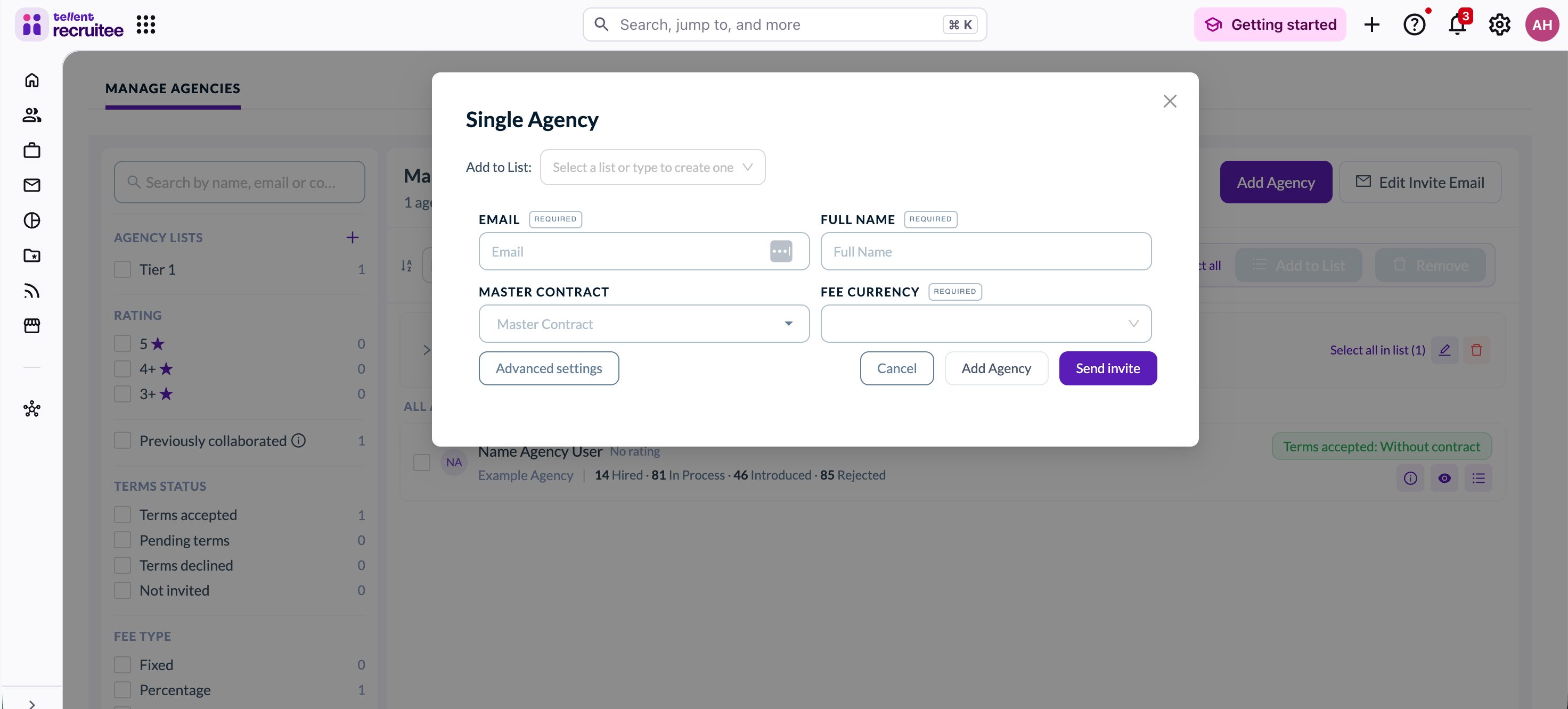
Enter the required agency details:
Agency email address
Agency full name or contact person
Select appropriate contract
Choose transaction currency
Configuring Contract Details
Select a contract saved within Master Contracts or click "Advanced settings" to reveal additional options (only when you didn't choose a contract from Master Contracts).
Select the contract type:
Permanent
Freelance
Secondment jobs
Set fee structures and payment terms
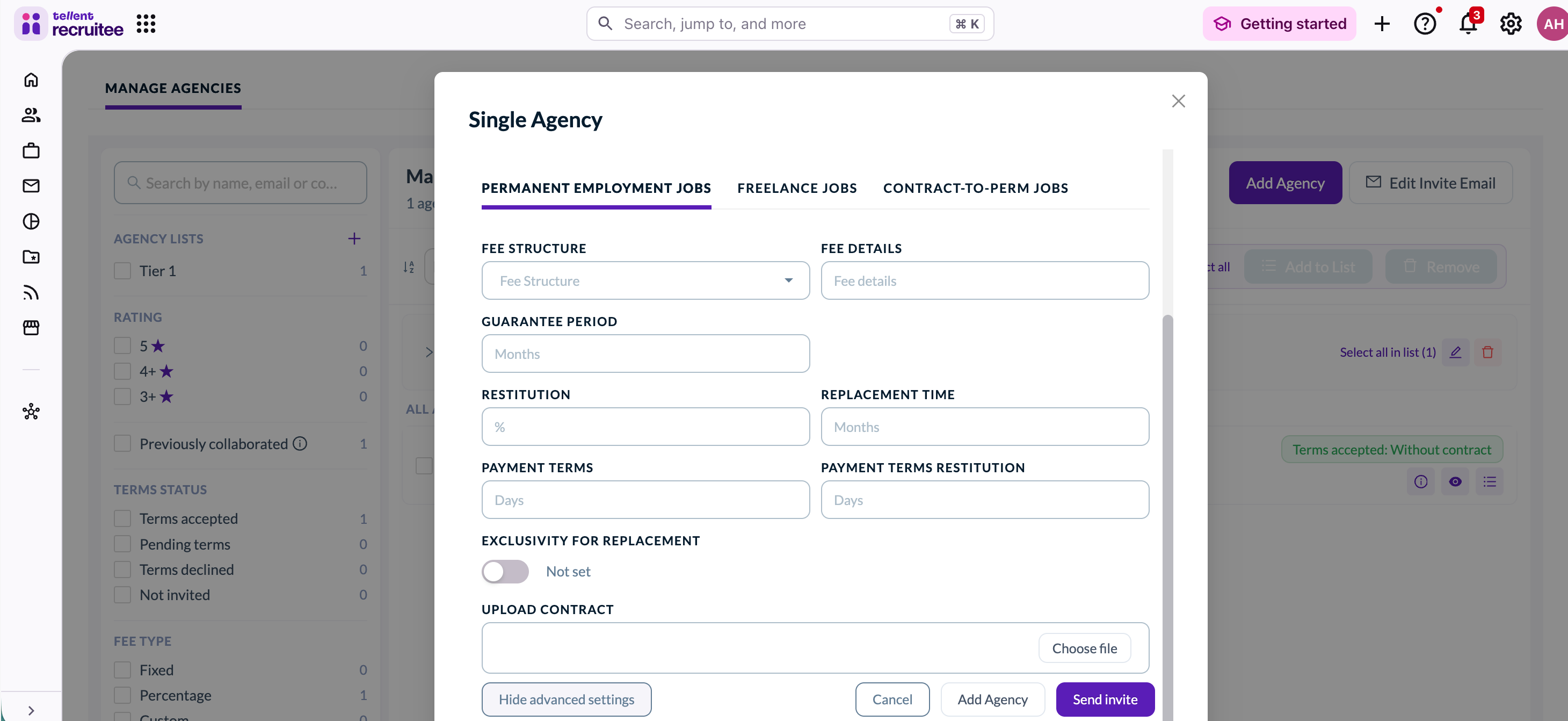
Click "Add Agency" to save without invitation or click "Send invite" to save and send invitation (note: mail goes to spam inbox sometimes).
Monitor agency status in the list (next to the agency name).
Managing agency lists
Inviting agencies via a list
Go to Agency Management in the AgencyHub.
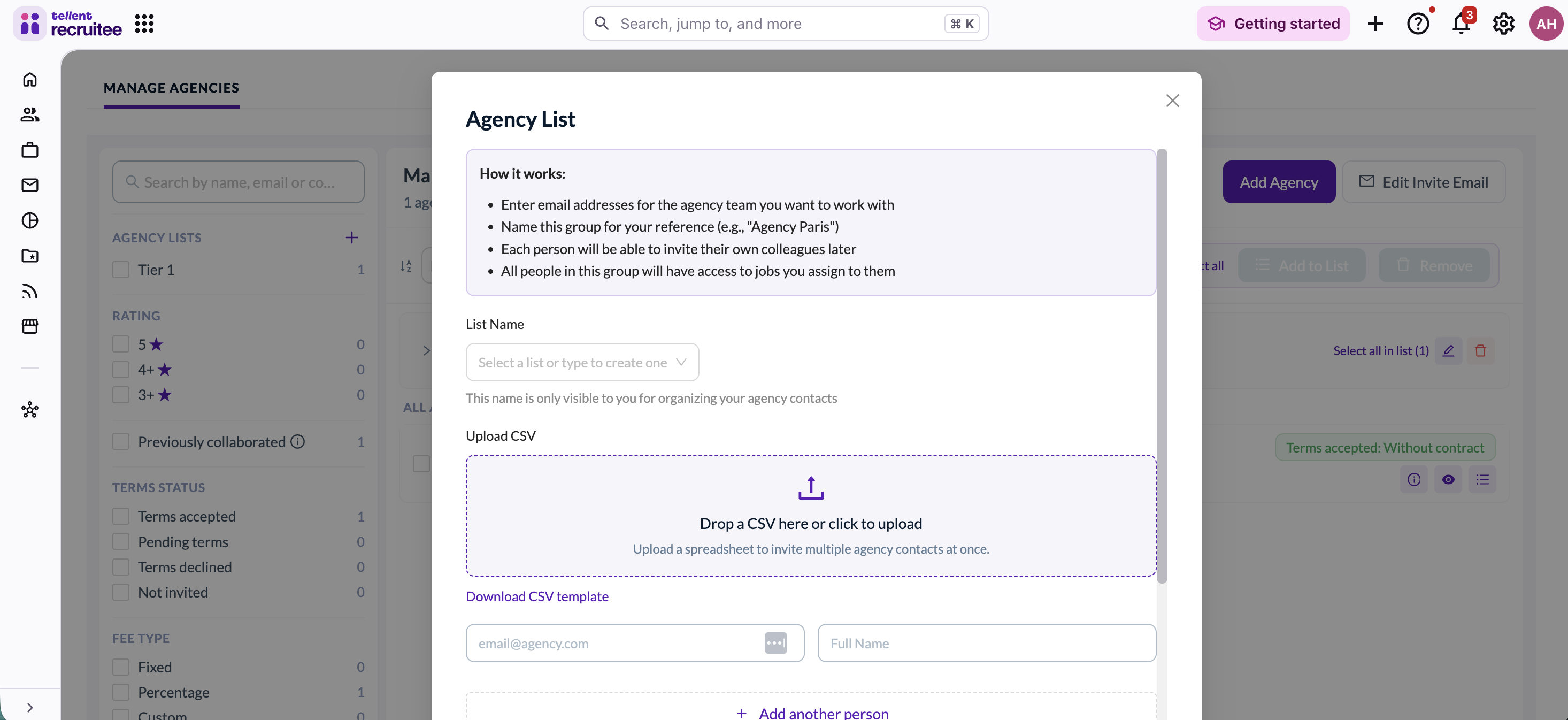
Click Add Agency.
In the dialog, select Agency List (instead of Single Agency).
Enter a list name. This name is only visible to you for internal organisation.
Add agency contacts by entering their email address and full name or upload a CSV file by dragging it into the upload area or clicking to browse.
Complete the remaining steps as you would for a single agency invitation.
Tip: Each invited contact will be able to add their own colleagues later. All members of the list will have access to the jobs you assign to them.
Creating a list from existing agencies
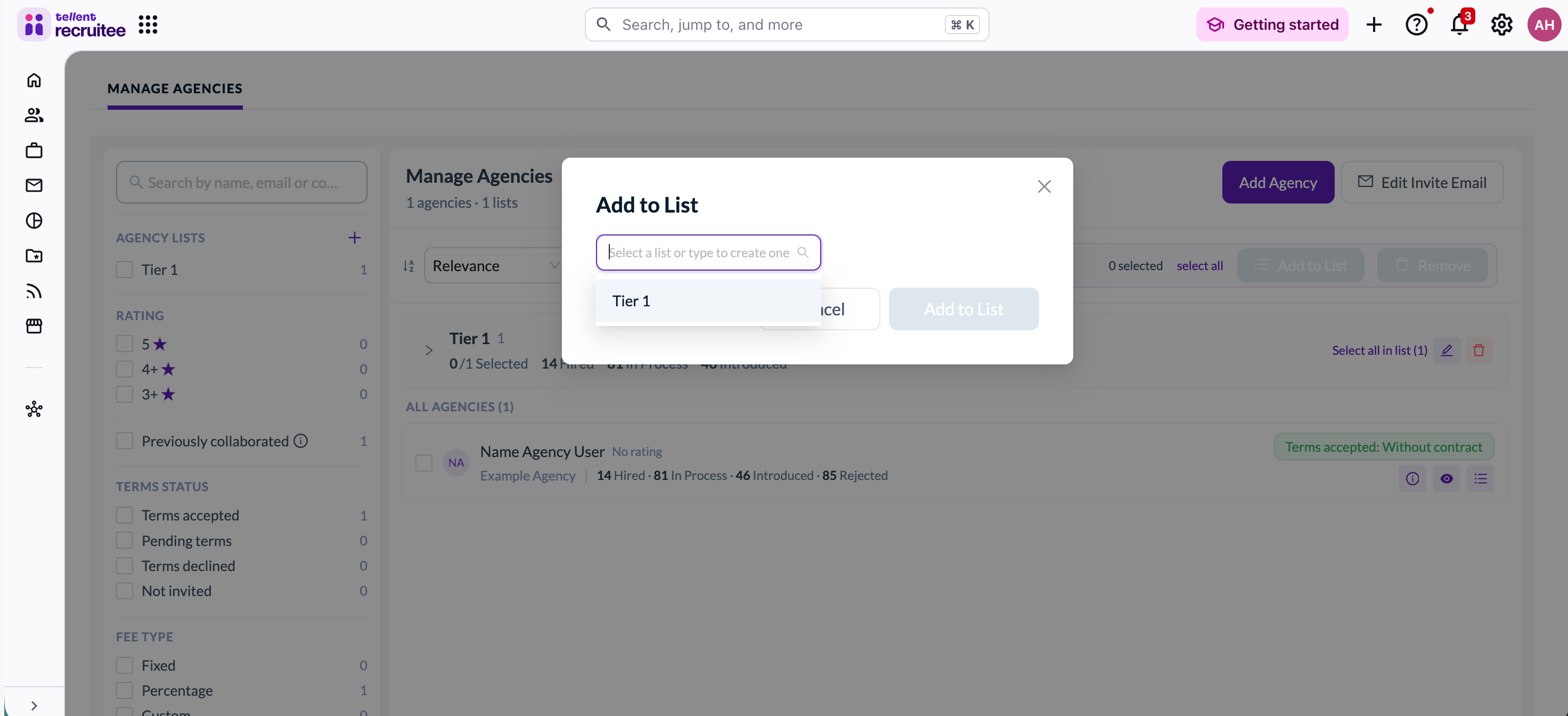
You can also create and manage lists after agencies have already been added.
Go to Agency Management.
Select the agencies you want to group by ticking their checkboxes.
Click the + icon next to Agency Lists in the left panel.
Enter a name for the list (e.g. "Tier 1", "Tier 2", "Finance Agencies") and confirm.
The selected agencies will be added to the new list immediately.
Customizing Invitations
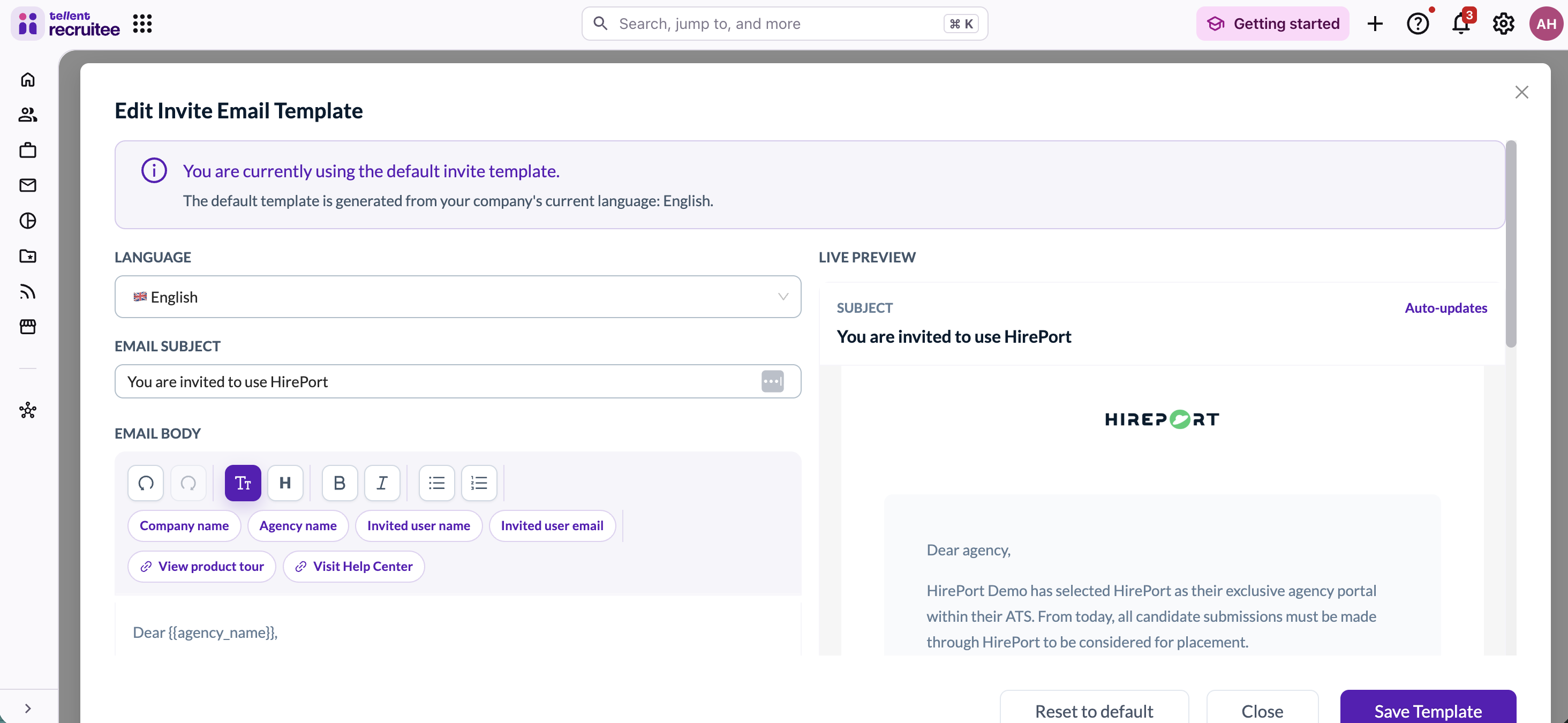
Click "Edit invite email" in the Agency Management screen (top right)
Choose the correct language
Modify the introduction text
Preview the complete email (make sure the product tour link and the help center link are in there!)
What happens if I enter the wrong email address for an agency?
If you enter an incorrect email address, the invitation won't reach the intended recipient. You can send a new invitation with the correct email address. The agency on the wrong email address can be removed by following this process.
Best Practices
Agency Setup
Verify all contact information before adding
Prepare contract terms in advance
Set clear fee structures
Create organized agency lists
Invitation Process
Personalize invitation messages
Double-check email addresses
Review all contract terms
Confirm fee arrangements
Set up Master Contracts in the Master Contracts module before the invitation process
Post-Invitation
Monitor acceptance status
Follow up on pending invitations
Maintain organized lists
Troubleshooting Common Issues
Invalid Email Addresses
Verify email format
Check for typos
Confirm business domain
Contract Configuration
Review required fields
Check fee structures
Verify currency settings
Invitation Problems
Resend if needed
Check email delivery
Verify spam settings
Need help?
Contact Recruitee support.